
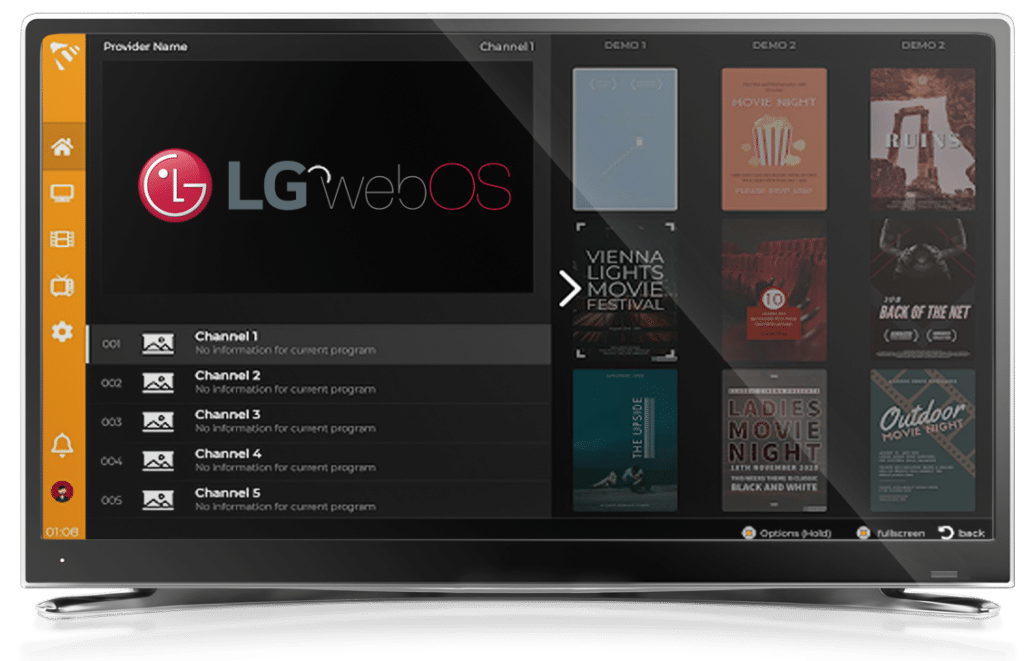
If you own an LG Smart TV, you’re sitting on entertainment potential that most people barely scratch the surface of. I’ve spent countless hours testing different IPTV solutions, and I can tell you this: finding the right WebOS IPTV player changes everything about how you watch television.
Let me walk you through what I’ve learned, so you can skip the trial and error and jump straight to enjoying thousands of channels on your beautiful LG display.
What Makes WebOS the Perfect Platform for IPTV?
You know that smooth, intuitive interface your LG TV has? That’s WebOS working its magic. Unlike other smart TV platforms that feel clunky or require external devices, WebOS handles IPTV apps natively. This means no extra boxes cluttering your entertainment center, no additional remotes to lose, and no complicated HDMI switching.
The real advantage? WebOS was built from the ground up for streaming. The card-based interface makes jumping between your regular TV apps and IPTV services feel natural. You’re not fighting against the system – you’re working with it.
Best WebOS IPTV Players Available in 2025
After testing every major player in the market, here’s what actually works:
IPTV Smarters Player – The Reliable Workhorse
This is where most people start, and for good reason. IPTV Smarters Player has earned its reputation through consistency. The interface won’t blow your mind with fancy graphics, but it gets the job done without fuss.
What I appreciate most is the Xtream Codes API support. This means automatic EPG loading and Catch-up TV features without jumping through hoops. When you’re flipping through channels at 9 PM trying to find something to watch, you’ll appreciate how smoothly everything flows.
Setting it up takes maybe ten minutes if you’re moving slowly. Head to the LG Content Store, search for “IPTV Smarters Player” (not “Pro” – that’s important), install it, and you’re most of the way there.
Smart IPTV – The Classic Choice
Smart IPTV has been around the block. It’s one of those apps that doesn’t try to reinvent the wheel every update. Some folks call it dated, but I call it dependable.
The playlist support is solid – both M3U and XSPF formats work without complaint. The EPG integration shows you what’s playing and what’s coming up next. It’s straightforward television viewing, which is sometimes exactly what you want after a long day.
One heads up: there’s a one-time activation fee after a trial period. It’s not expensive, but it catches some people off guard. Consider it an investment in stability.
SmartOne IPTV – Feature-Packed and Modern
If you want something that feels contemporary, SmartOne IPTV delivers. The interface uses modern design language that matches your TV’s aesthetic. But it’s not just pretty – the features list reads like a wish list.
Multi-account support means your whole family can have their own personalized channel lists. The built-in parental controls actually work (I tested them thoroughly). And those free radio stations? Perfect for weekend mornings when you want music playing while you clean up.
The live sports scores integration is something I didn’t know I needed until I had it. Now during football season, I find myself checking match results without even pulling out my phone.
Duplecast – The New Contender
Duplecast caught my attention recently. Fast channel zapping – and I mean genuinely fast, not “faster than it used to be” fast. When you’re surfing through hundreds of channels, those seconds add up.
The customization options go deep. You can adjust the color scheme, rearrange menus, create favorite groups with surgical precision. It’s the kind of app power users will love tweaking on a Sunday afternoon.
Starting with a 15-day free trial removes the pressure to decide immediately. Test it, live with it, see if it fits your viewing habits.
Setting Up Your WebOS IPTV Player: The Real Process
Every guide makes setup sound like three easy steps. Let’s be honest – there are a few more details that matter.
Step 1: Get Your LG Content Store Account Ready
Press the Home button on your remote. You’ll see your apps laid out in that signature WebOS card layout. Navigate to the LG Content Store – it’s usually right there on the launcher bar.
If you’ve never used the store before, you’ll need to sign in or create an account. This takes a few minutes, but you only do it once. Use a real email address you can access; they’ll send confirmation codes.
Step 2: Download Your Chosen IPTV Player
Use that search icon (it looks like a magnifying glass) and type in your player’s name. Be specific – “IPTV Smarters Player,” “Smart IPTV,” whatever you’ve chosen.
When it appears in the results, click Install. The download is usually quick; these aren’t massive apps. Once installed, you’ll find it in your My Apps section.
Step 3: Configure Your IPTV Subscription
This is where having your IPTV provider details handy matters. You’ll need either:
- Your M3U playlist URL
- Or your Xtream Codes login (username, password, and server URL)
Open the app you just installed. Most players give you both options right on the opening screen. If you’re using tvplusstream services, you’ll receive these credentials through your account dashboard or welcome email.
Enter everything carefully. URLs are fussy – one wrong character and nothing works. Take your time.
Step 4: Optimize Your Settings
Here’s where most guides stop, but this step makes the difference between “it works” and “it works beautifully.”
Go into your app settings and find the video mode option. Set it to “NC MPEG” or “NC Auto” for WebOS. This single change improves playback compatibility dramatically. I learned this the hard way after wondering why some channels stuttered.
Enable adaptive bitrate streaming if your app offers it. This automatically adjusts quality based on your internet connection, preventing buffering during peak hours when your neighbor is also streaming.
Consider locking your MAC/ID in the app settings. This prevents accidental resets if someone else in your household messes with the configuration.
Internet Speed: The Hidden Variable
You can have the best IPTV subscription and the fanciest player, but if your internet connection can’t keep up, you’ll spend more time watching loading circles than actual content.
For HD streaming, you need at least 5 Mbps dedicated to your TV. Not 5 Mbps total internet speed – 5 Mbps available for streaming while accounting for other devices on your network.
4K content? You’re looking at 25 Mbps minimum. And that’s not marketing speak; that’s what actually works in real-world conditions.
If buffering becomes your constant companion, try these fixes:
Connect your TV via Ethernet instead of WiFi. I know, running a cable isn’t sexy, but the stability difference is night and day. WiFi connections fluctuate; Ethernet doesn’t.
Clear your app cache regularly. Go to Settings, find Apps, locate your IPTV player, and clear its cache. This solves more problems than you’d think.
Check your router placement. If it’s sitting in a closet two floors away, your TV is fighting an uphill battle. Central locations work better.
Troubleshooting Common WebOS IPTV Issues
Channels Won’t Load
First, verify your subscription is active. It sounds obvious, but expired subscriptions cause a surprising percentage of “nothing works” complaints.
Check if your playlist URL or login credentials are correct. Try entering them again, paying attention to every character. Copy-paste if possible to avoid typos.
Video Stutters or Freezes
Lower the resolution temporarily. Drop to 720p or even 480p and see if playback smooths out. If it does, your internet connection is the bottleneck.
Restart your TV completely. Not sleep mode – actually power it off and unplug it for thirty seconds. WebOS sometimes needs a hard reset to clear memory issues.
App Crashes on Startup
Uninstall and reinstall the app. Sometimes installation files get corrupted, and starting fresh solves mysterious crash issues.
Make sure your TV’s firmware is current. LG releases updates that improve app compatibility. Navigate to Settings > All Settings > General > About This TV > Check for Updates.
Why Choose tvplusstream for Your WebOS IPTV Needs?
Not all IPTV providers are created equal. Some promise the world and deliver buffering. Others offer rock-solid streams but terrible channel selection.
tvplusstream understands what matters: reliable connections, comprehensive channel lineups, and support that actually responds when you have questions. Their service is optimized specifically for WebOS platforms, which means less troubleshooting and more watching.
The subscription plans scale to different needs. Whether you’re a casual viewer who wants news and movies, or a sports fanatic who needs every league, there’s a package that fits.
Making the Most of Your Setup
Once everything works, explore your player’s features. Most people use maybe 20% of what these apps can do.
Create favorite channel lists for quick access. When you find yourself watching the same dozen channels repeatedly, put them in a favorites group. Sunday night when you want to catch up on news? One button press takes you there.
Set up parental controls if kids use the TV. You can restrict access to certain channels or require a PIN for specific content. It’s easier than monitoring every time they grab the remote.
Use the EPG (Electronic Program Guide) to plan your viewing. See what’s coming up later, set reminders for shows you want to catch. The guide transforms random channel surfing into intentional watching.
The Future of IPTV on WebOS
The trajectory is clear: IPTV is becoming the standard, not the alternative. Traditional cable companies are losing subscribers quarterly, and those people are moving to internet-based solutions.
WebOS continues improving with each update. LG invests heavily in this platform because they understand it’s a key differentiator. Expect better app performance, more features, and improved integration with each firmware release.
Voice control integration is expanding. More IPTV players are adding support for LG’s voice assistant. Eventually, “Show me Premier League matches” will pull up exactly what you want without touching the remote.
Taking Action
Here’s my advice if you’re ready to set up IPTV on your LG TV:
Choose one player from the options above. Don’t overthink it – they all work well, just with different strengths. IPTV Smarters for reliability, SmartOne for features, Duplecast for speed.
Get a quality IPTV subscription. Visit tvplusstream.com , look at their packages, and select one that matches your viewing habits. Their channel lists are transparent, so you know exactly what you’re getting.
Set aside thirty minutes for setup. Find a quiet time when you won’t be interrupted, get your credentials ready, and work through the installation step by step.
Test the service for a few days. Watch your regular channels, try the EPG, explore the VOD library. Get comfortable with the interface before you dive deep into customization.
The beauty of WebOS IPTV is that it’s not particularly complicated once you understand the basics. You’re not hacking your TV or voiding warranties. You’re just installing an app and entering some credentials.
Your LG Smart TV was designed for this. The WebOS platform makes IPTV feel like a natural extension of your TV’s capabilities, not some bolted-on afterthought.
Stop paying for cable packages filled with channels you never watch. Take control of your entertainment, access content from around the world, and do it all through that gorgeous LG display you already own.
The setup process I’ve outlined works. I’ve walked friends and family through it multiple times. Follow these steps, and within an hour, you’ll be watching thousands of channels on your WebOS IPTV player.
Ready to transform your television experience? Your LG TV is capable of so much more than you’re currently using it for. All it takes is the right app and the right service to unlock that potential.








