
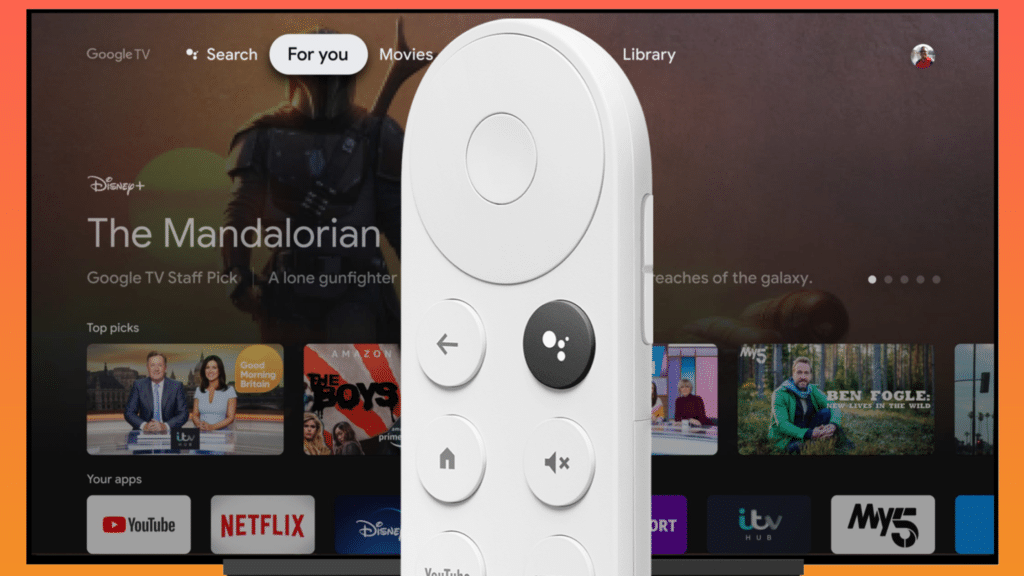
Let’s be real for a moment. The Google Chromecast is one of the most brilliant little gadgets ever invented. It turns any “dumb” TV into a smart entertainment hub for under $50. But while casting YouTube or Netflix is as easy as tapping a button, things get a bit more complicated—and a lot riskier—when you want to stream IPTV XXX channels.
If you are trying to watch adult content on your big screen, you likely have two major concerns: Privacy (you don’t want your roommates or family seeing your watch history) and Security (you don’t want your ISP tracking what you are doing).
I have spent years testing every generation of Chromecast, from the original “key” style dongle to the latest Chromecast with Google TV (4K). In this guide, I’m going to walk you through exactly how to stream sensitive content safely, which apps actually work, and how to lock everything down so your private viewing stays private.
Know Your Device: Casting vs. Google TV
Before we start installing anything, it is crucial to understand which Chromecast you have, because the method changes completely.
1. The “Old School” Chromecasts (Gen 1, 2, 3, & Ultra)
These are the dongles that don’t have a remote. They are purely receivers. You cannot install apps on them.
- How it works: You play the content on your phone (Android/iOS) and “cast” it to the TV.
- Privacy Level: High. Since the app lives on your phone, there is no history or app icon left on the TV screen once you disconnect.
2. Chromecast with Google TV (HD & 4K)
These are the newer ones that come with a white voice remote. They run a full operating system (Android TV).
- How it works: You install apps directly onto the device, just like a Firestick.
- Privacy Level: Medium. The apps sit on your home screen unless you hide them. We will talk about how to secure this later.
Step 1: The “Digital Condom” (VPN Protection)
I cannot stress this enough: Never stream IPTV adult channels without a VPN.
When you stream via IPTV, you aren’t connecting to a verified server like Netflix. You are often connecting to offshore servers. Furthermore, your Internet Service Provider (ISP) can inspect your traffic. If they see you are streaming terabytes of data from known IPTV IP addresses, they can throttle your speed (buffering) or flag your account.
- For Older Chromecasts: You must run the VPN on your phone (the device doing the casting).
- For Chromecast with Google TV: You can install a VPN app directly on the device from the Google Play Store.
Recommended Resource: Check out Google’s support page on Chromecast security to understand how your data is handled.
Method A: Casting from Mobile (The Safest Route)
This is my preferred method for watching adult content because it leaves zero trace on the TV itself. If someone walks in, you just hit “Stop Casting” on your phone, and the TV goes back to its innocent screensaver.
The Setup:
- Get a Mobile IPTV Player:
- Android: Download IPTV Smarters Pro or TiviMate (Premium). These are the gold standards.
- iOS: Download GSE Smart IPTV or Smarters Player Lite.
- Load Your Playlist:
- Open the app on your phone.
- Login with your M3U URL and credentials (provided by your service, like TVPLUSSTREAM).
- Connect to VPN:
- Open your VPN app on your phone and connect to a fast server.
- Start Casting:
- Open the channel you want to watch.
- Look for the Cast Icon (a small rectangle with Wi-Fi waves) in the top corner of the video player.
- Select your Chromecast device.
Why this works best: Your phone does the heavy lifting. The “Adult” category stays hidden inside the app on your phone, secured by your phone’s FaceID or passcode.
Method B: Native Apps on Chromecast with Google TV
If you have the newer Chromecast with the remote, you might prefer the convenience of browsing on the TV screen. Here is how to do it safely.
1. Enable “Developer Mode” (To Sideload Apps)
Google doesn’t allow many IPTV players in the official store, so we need to “sideload” them.
- Go to Settings > System > About.
- Scroll down to Android TV OS build and click the center button on your remote 7 times fast. It will say “You are now a developer.”
2. Get the “Downloader” App
- Go to the Apps tab and search for “Downloader”. Install it.
- Open it and give it permission to access files.
3. Install TiviMate (The King of IPTV)
TiviMate is hands-down the best player for Android TV. It looks just like a cable box.
- In Downloader, type this shortcode:
278077(or search for the TiviMate APK). - Install the app.
4. Configure for Privacy
This is the vital step.
- Hide the App: You can install a custom launcher to hide the TiviMate icon from the main screen, or move it to the very end of your app list.
- Parental Control: Inside TiviMate, go to Settings > Parental Control.
- Turn it ON and set a 4-digit PIN.
- Go to your Playlists settings, find the group labeled “Adult” or “XXX”, and toggle “Lock Group”.
- Result: Even if someone opens the app, they cannot see or access the adult channels without the PIN.
Why TVPLUSSTREAM is Perfect for Chromecast
Not all IPTV providers are created equal when it comes to casting. Many use cheap servers that buffer endlessly when you try to push the stream from a phone to a TV.
TVPLUSSTREAM is specifically optimized for this.
- Mobile-First Streams: Their streams are encoded to work flawlessly on mobile networks, which makes casting to older Chromecasts incredibly smooth.
- organized Categories: Their adult section is neatly categorized (rather than one giant mess of 500 channels), making it easy to navigate on a phone screen before you cast.
- Multi-Connection: You can watch on your phone while casting to the TV simultaneously if you have the right plan.
Avoiding Malware and “Free” Lists
You will find thousands of websites offering “Free IPTV M3U Links.” Avoid these like the plague.
Free playlists are often bait. They can:
- Inject Ads: Interrupt your stream with shady pop-ups.
- Track You: Log your IP address to sell to advertisers.
- Die Instantly: Most free links last about 24 hours before they are shut down.
Always use a paid, premium service. It costs less than a cup of coffee a month and ensures you aren’t downloading malware onto your network. Stick to trusted setups found in our IPTV Setup Guides.
Frequently Asked Questions (FAQ)
Q: Can I cast directly from a browser (Chrome) to TV? A: Yes, but it is not recommended for high-quality video. Casting a “Tab” from your PC uses a lot of processing power and often results in stuttering video. Using a dedicated app like TiviMate or Smarters is much smoother.
Q: Will my Chromecast save my watch history? A: If you are “Casting” from a phone (Method A), no. The Chromecast just acts as a mirror. If you use an app installed on the device (Method B), the app itself might save history, which is why using the Parental Control PIN is essential.
Q: What internet speed do I need for 4K Adult channels? A: 4K adult content is data-heavy. You need a stable speed of at least 25 Mbps. If you are using Wi-Fi, try to use the 5GHz band on your router, as it is much faster than the older 2.4GHz band.
Q: Is it illegal? A: The technology of IPTV and Chromecast is 100% legal. However, accessing copyrighted content without a license is illegal in many countries. We do not host or verify the content of providers; we only review the technology. Always use a VPN.
Conclusion
Watching IPTV XXX channels on Chromecast is one of the best ways to enjoy content privately, provided you take the right precautions.
If you value total privacy, stick to Method A (Casting from Mobile). It keeps the “evidence” in your pocket, not on the living room TV. If you prefer the convenience of a remote, Method B (Google TV with TiviMate) is fantastic, as long as you set up a strong PIN code for the adult category.
Remember, hardware is only half the battle. You need a reliable source. TVPLUSSTREAM remains our top recommendation for casting compatibility and high-definition variety in 2026.
Stay safe, secure your connection, and enjoy the show.








