
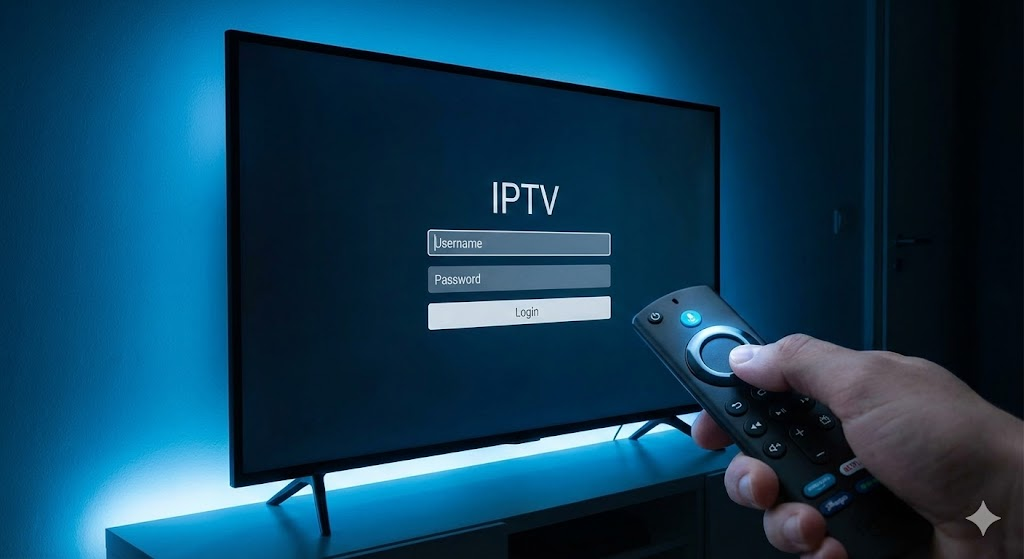
Getting a new streaming subscription is exciting, but staring at a blank screen wondering how to make it work is not. The good news is that the tv plus iptv setup process is much simpler than most people think. You do not need to be a tech wizard or hire a professional to get everything running. Whether you are using an Amazon Firestick, an Android box, or a Smart TV, the basic principles remain the same.
In this guide, we will walk you through the fastest method to get your channels live. By following these steps, you can go from zero to streaming your favorite sports and movies in just a few minutes.
What You Need Before You Start
Before diving into the software installation, ensure you have the basics ready. A smooth installation depends on a few prerequisites.
- High-Speed Internet: A stable connection of at least 20 Mbps is recommended for HD streaming.
- Streaming Device: Firestick (4K Max is best), NVIDIA Shield, or any Android TV box.
- Subscription Details: You need your M3U URL, Username, and Password. If you haven’t received these yet, check your spam folder or contact your provider.
- A VPN (Optional but Recommended): To prevent ISP throttling and keep your viewing habits private.
Once you have these items checked off, you are ready to begin the tv plus iptv setup.
Step 1: Preparing Your Device (Firestick & Android)
Most IPTV apps are not hosted on the official Amazon or Google Play stores due to the nature of the apps. This means you need to “sideload” the application. To do this, you must grant your device permission to install apps from outside sources.
Enabling Developer Options on Firestick
- Go to the Settings menu on your Firestick home screen.
- Select My Fire TV.
- Click on About.
- Scroll down to the device name (e.g., Fire TV Stick 4K) and click the select button on your remote 7 times fast. You will see a message saying, “You are already a developer.”
- Press back, and you will now see Developer Options.
- Turn on Apps from Unknown Sources (or “Install unknown apps”).
For standard Android boxes, this is usually found under Settings > Security > Unknown Sources.
Step 2: The Downloader Method
The easiest way to install tv plus iptv apps is by using the “Downloader” application. This acts as a bridge to get the files you need directly from the internet.
- Open the “Find” or “Search” function on your device.
- Type in Downloader.
- Select the orange app icon and click Get or Download.
- Open the app once installed and allow it permission to access files (this is necessary to save the APK).
Step 3: Installing the IPTV Player
Now that you have the tools, it is time for the actual installation. You can’t usually install the service directly; you install a player that reads the service. Popular choices include IPTV Smarters Pro or TiviMate.
Using Downloader to Get the App
- Open Downloader and click the URL bar.
- Enter the “Short Code” or direct URL provided by your service. If you don’t have a specific custom app, you can use the code for IPTV Smarters (often 78522 or similar generic codes found online).
- Click Go. The file will begin downloading automatically.
- Once finished, a prompt will appear asking if you want to install. Click Install.
- After installation, click Done (not Open).
- Delete the APK file to save space on your device.
Step 4: Logging In and Configuration
Now comes the moment of truth. Open your newly installed app from your apps list. You will be greeted with a login screen.
- Playlist Name: Enter anything you like (e.g., “My TV”).
- Username: Enter the username from your confirmation email.
- Password: Enter the password (case sensitive).
- URL: Enter the full URL (usually starts with http://).
Click Add User or Login. The app will take a moment to download the channels, movies, and series list. If the bar loads successfully, your tv plus iptv setup is complete.
Troubleshooting Common Setup Issues
Even with a perfect guide, technology can sometimes be temperamental. If you encounter issues during your tv plus iptv tutorial steps, try these quick fixes.
“Authentication Failed”
This is the most common error. It almost always means a typo. Double-check your URL, username, and password. Pay close attention to capital letters and the difference between the letter ‘O’ and the number ‘0’.
Buffering or Lag
If the channels load but constantly freeze, restart your router. Unplug it for 30 seconds and plug it back in. If the issue persists, your ISP might be throttling your connection. This is where a VPN becomes essential.
Empty Channel List
If you log in but see “0 Channels,” click the “Refresh DNS” or “Update Playlist” button in the app settings.
Why Quality Matters
Following this guide works best when paired with a reliable provider. A perfect setup cannot fix a cheap, unstable server. If you are tired of constant buffering and low-quality streams, it might be time to look at premium IPTV options that prioritize server stability and customer support. High-quality providers ensure that once you set it up, it stays up.
Frequently Asked Questions
Can I use this setup on my iPhone? Yes, but the method is different. You cannot use Downloader. Instead, download an IPTV player like “GSE Smart IPTV” or “IPTV Smarters” directly from the Apple App Store and input your login credentials there.
Is it safe to install apps from unknown sources? Generally, yes, provided you are downloading reputable players like Smarters, TiviMate, or the official app from your provider. Always ensure you are entering trusted URLs.
Why is my guide (EPG) not loading? The Electronic Program Guide often takes longer to load than the channel list. If it remains empty, go to your app settings and select “Install EPG” or “Force EPG Update.”
Conclusion
Completing your tv plus iptv setup doesn’t have to be a headache. By preparing your device, using the Downloader app, and carefully entering your credentials, you unlock a world of entertainment that puts traditional cable to shame. It is fast, efficient, and cost-effective.
Now that your system is ready, grab the popcorn and enjoy the show.
Still looking for a reliable feed? Upgrade your experience with TVPlusStream services today for buffer-free HD streaming.








