
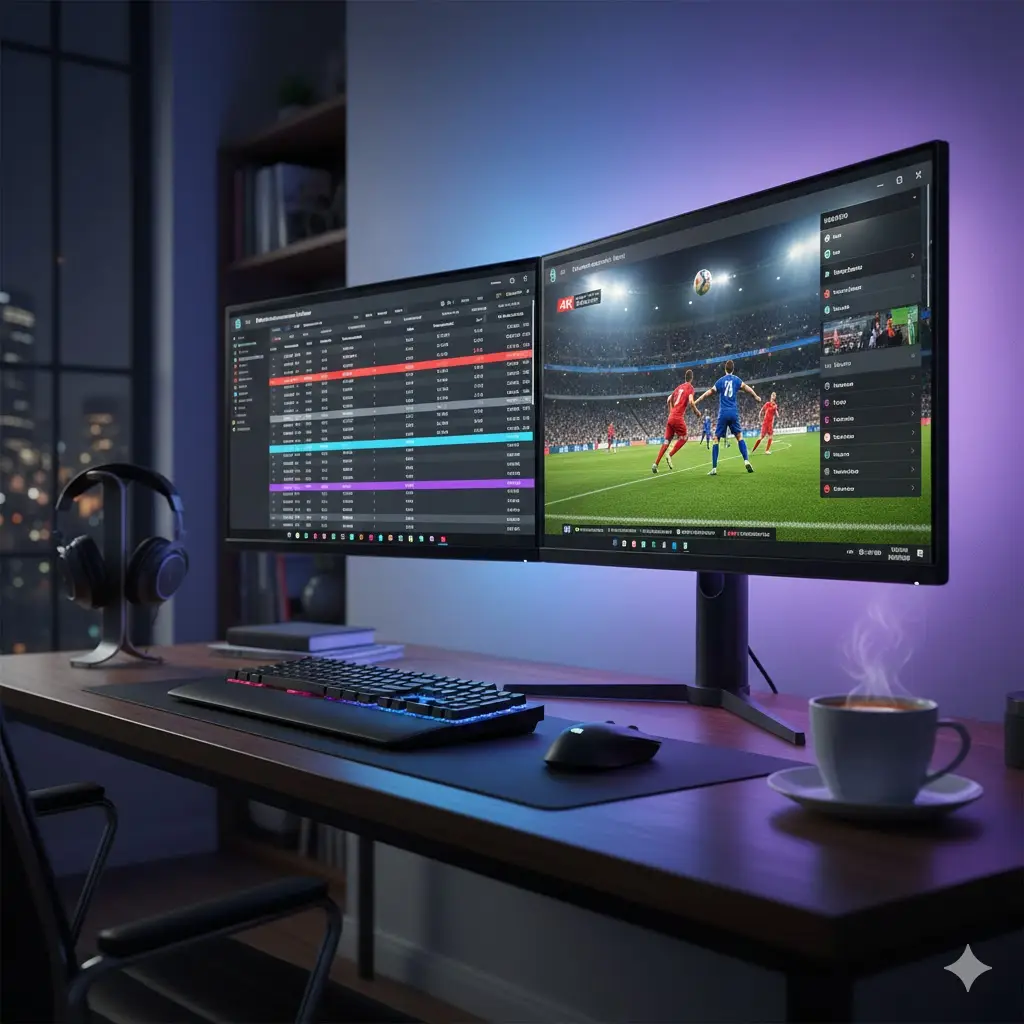
Turning your computer into a powerful streaming hub is easier than you might think. With the right iptv pc setup, you can watch thousands of live channels, sports events, and movies directly on your laptop or desktop monitor. Whether you are traveling for work or just want a second screen for the big game, your computer is often the most reliable device for high-quality streaming.
Unlike Smart TVs or streaming sticks, computers offer superior processing power. This means faster channel switching, better buffering management, and the ability to multitask while you watch. This guide will walk you through the simple steps to get iptv windows and iptv mac systems up and running in minutes.
Why Use Your PC for IPTV?
Most people think of IPTV as a living room experience, but the desktop offers unique advantages.
- Portability: Take your entertainment anywhere your laptop goes.
- Performance: A modern PC processor crushes the weak chips found in most cable boxes.
- Multitasking: Watch the news in a corner window while you work on a spreadsheet.
- Recording: Many PC-based players allow you to record live TV directly to your hard drive.
Method 1: VLC Media Player (The Universal Solution)
VLC is the Swiss Army knife of media players. It is free, open-source, and handles pc m3u files better than almost any other software. It works identically on both Windows and macOS.
Installation and Setup
- Download VLC: Go to the official VideoLAN website and download the version for your OS.
- Open the Player: Launch VLC after installation.
- Load Your Playlist:
- Click on Media (Windows) or File (Mac) in the top menu.
- Select Open Network Stream.
- Paste your M3U URL provided by your IPTV service.
- Click Play.
Managing Channels in VLC
By default, VLC plays the first channel on the list. To see the full channel list:
- Go to View > Playlist (or press Ctrl+L / Cmd+L).
- You will see a searchable list of all available channels. Double-click any name to switch streams instantly.
Method 2: IPTV Smarters Pro (Best Interface)
If you prefer a Netflix-style interface with posters, EPG (TV Guide), and organized categories, VLC might feel too basic. IPTV Smarters is the most popular dedicated application, but installing it on a PC requires a specific version.
For Windows Users
There is a dedicated iptv windows version of Smarters.
- Download the “IPTV Smarters Pro” executable file.
- Run the installer and launch the app.
- Select “Login with Xtream Codes API.”
- Enter your Username, Password, and Server URL (ask your provider for these).
- Click Login to load the dashboard.
For Mac Users
Mac users have it even easier.
- Open the Mac App Store.
- Search for “IPTV Smarters Pro” or “GSE Smart IPTV.”
- Download the app directly.
- Login using your subscription details.
Method 3: Web Players (No Installation Required)
Sometimes you are on a work computer and cannot install new software. In this case, a web player is your best friend. Many premium IPTV solutions provide a web-browser interface.
You simply navigate to a specific URL (e.g., https://www.google.com/search?q=web.player-url.com), enter your login credentials, and stream directly through Chrome, Safari, or Edge. This is the fastest way to get started if you are in a rush.
Troubleshooting Common PC Playback Issues
Even with a powerful computer, you might run into hiccups. Here is how to smooth them out.
VLC Loop Issue
If VLC plays a channel for 10 seconds and then skips to the next one, your playlist is likely failing a “keep-alive” check.
- The Fix: In the “Open Network Stream” window, click “Show more options” and check the box that says “Loop” or click the loop button in the playback controls. This forces VLC to reconnect to the stream if it drops.
Firewall Blocking
Sometimes your antivirus or Windows Defender sees the incoming video stream as a threat.
- The Fix: Add your IPTV player (VLC or Smarters) to your Firewall “Allow” list.
High CPU Usage
Streaming 4K content can be demanding.
- The Fix: Ensure “Hardware Acceleration” is enabled in your player’s settings. This offloads the work from your CPU to your graphics card.
Choosing the Right Service for PC
A great setup needs a great source. Because PC monitors sit closer to your eyes than TVs, low-quality streams look terrible. Pixelation and compression artifacts are much more noticeable on a crisp retina display or a 1440p monitor.
You need a provider that prioritizes high bitrate streams. Budget providers compress their signal to save money, resulting in a blurry image. For a crystal-clear experience that takes full advantage of your high-resolution monitor, consider upgrading to professional TVPlusStream services. Their premium feeds are optimized for high-fidelity displays.
Conclusion
Mastering the iptv pc setup gives you the ultimate flexibility. You are no longer tethered to the living room couch. Whether you use the robust VLC player for quick access or the polished Smarters app for a full TV experience, your computer is ready to deliver world-class entertainment.
Don’t settle for grainy, buffering streams on your high-end machine.
Unlock the full potential of your display with TVPlusStream and watch your favorite channels in stunning HD.
FAQ Section
Q: Is it safe to watch IPTV on my PC? A: Yes, it is safe as long as you use reputable software like VLC or official apps. However, to protect your privacy and avoid ISP throttling, using a VPN on your computer is highly recommended.
Q: Can I record live TV on my PC? A: Yes! VLC Media Player has a “Record” button. Simply enable “Advanced Controls” under the View menu, and you can save any live stream directly to your hard drive as a video file.
Q: Why is my IPTV Smarters app blank on Windows? A: This is a common bug with older versions. Try running the application as an Administrator, or ensure you have the latest Java and DirectX drivers installed on your machine.
(Tap to copy code)








