
Your iPhone has one of the best displays on the market. With its Retina screen and powerful processor, it is arguably the perfect device for consuming high-definition content. Yet, many users limit themselves to Netflix or YouTube, completely missing out on live television. Unlocking the full potential of your device with a proper iptv iphone setup allows you to carry your TV subscription in your pocket, whether you are traveling, commuting, or just lounging in bed.
Unlike Android users who can easily “sideload” any app they want, iOS users often feel restricted by Apple’s “walled garden” ecosystem. There is a common misconception that you need to be a hacker or “jailbreak” your phone to watch live TV. This is simply not true. In 2026, there are official, safe, and powerful apps available directly on the App Store that make streaming seamless.
Why iOS Streaming is Different
Before we jump into the installation, it is helpful to understand how streaming on an iPhone differs from other devices. Apple is strict about what apps are allowed in its store. This means you won’t find the thousands of generic (and often buggy) players that exist on Android.
However, the apps that do make the cut are usually of higher quality. They are optimized for battery life and utilize the iPhone’s advanced hardware decoding, ensuring that your iptv ios experience is smooth and crisp.
Top IPTV Players for iPhone & iPad
You cannot watch TV without a video player. Here are the top three reliable options currently available for iOS.
1. Smarters Player Lite
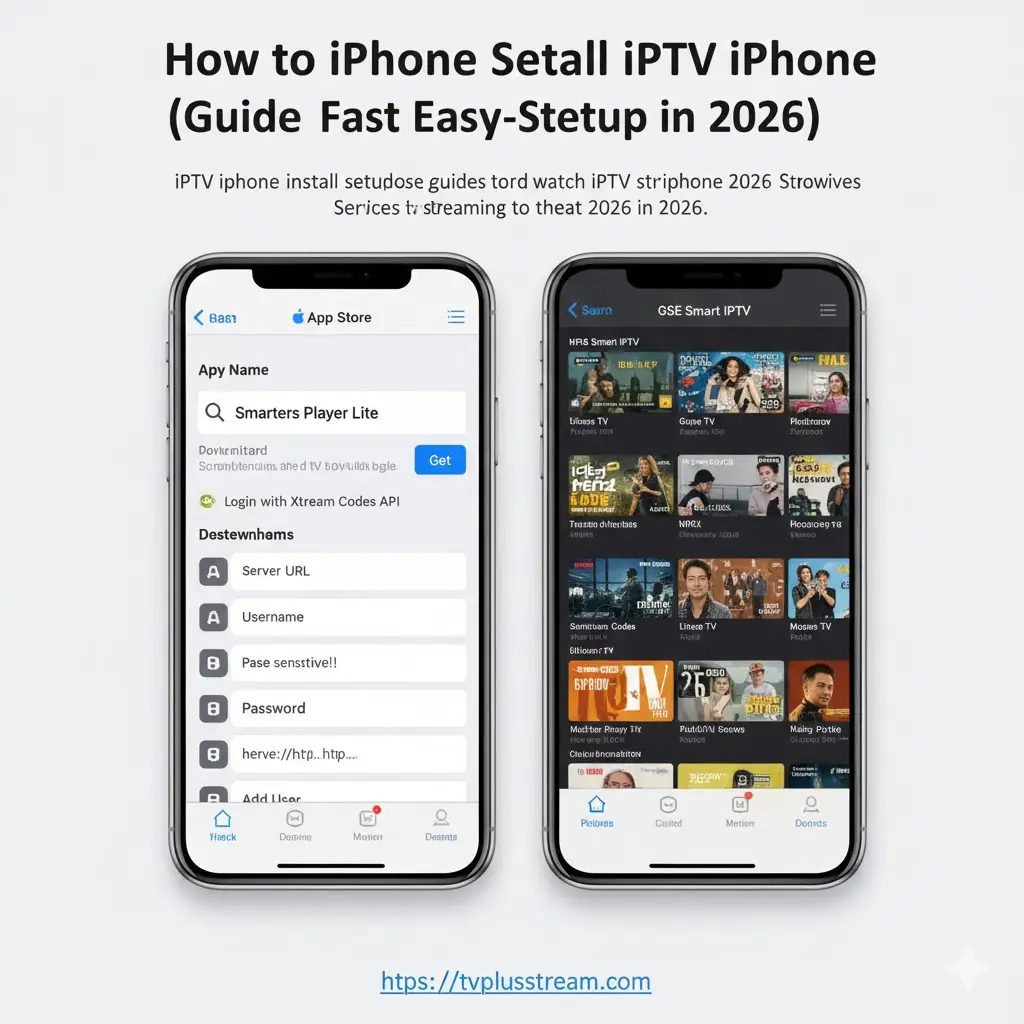
This is the iOS version of the famous IPTV Smarters Pro. It is arguably the most popular choice because of its clean interface that separates Live TV, Movies, and Series into a neat grid.
2. GSE Smart IPTV
A veteran in the game, GSE is a powerhouse for users who want advanced controls. It supports almost every format of playlist and allows for extensive customization, though the interface is a bit more complex.
3. IPTVX
If you love the look of Netflix, you will love IPTVX. It uses metadata to automatically download movie posters, plot summaries, and cast info, turning your boring text playlist into a beautiful visual library.
Step-by-Step Setup Guide (Using Smarters Player Lite)
For this tutorial, we will focus on Smarters Player Lite as it is the most user-friendly for beginners. The process is similar for most other iphone m3u players.
Step 1: Download the App
- Unlock your iPhone and open the App Store.
- Tap the Search icon in the bottom right corner.
- Type “Smarters Player Lite” in the search bar.
- Tap the Get button to download and install it.
Step 2: Gather Your Credentials
You cannot simply open the app and start watching; you need a service to connect to. When you subscribe to a provider, you will receive credentials via email.
- Xtream Codes: This typically includes a Server URL, Username, and Password.
- M3U URL: A long link ending in
.m3u.
Note: Xtream Codes are generally preferred on mobile as they are easier to type than long URLs.
Step 3: Login and Connect
- Open the Smarters Player Lite app.
- Accept the Terms of Service.
- You will see a login screen. Select “Login with Xtream Codes API”.
- Any Name: Enter a name for your list (e.g., “Bedroom TV”).
- Username: Enter the username from your email (Case sensitive!).
- Password: Enter your password.
- URL: Type the server address exactly as provided (http://…).
- Tap Add User.
Step 4: Watching TV
Once logged in, tap on your profile name. You will be taken to the dashboard. Simply tap “Live TV” to browse channels or “Movies” to watch on-demand content.
Ensuring a Buffer-Free Experience
Watching live sports on a mobile connection can be tricky. Here are a few tips to optimize your stream.
- Use 5GHz Wi-Fi: When at home, ensure you aren’t connected to the slower 2.4GHz band. 5GHz provides the speed needed for HD streams.
- Background App Refresh: Go to your iPhone settings and turn off background refresh for other data-hungry apps like Facebook or Instagram while you are streaming.
- Get a Quality Provider: No amount of app tweaking can fix a bad server. If your stream is constantly freezing, the issue is likely your subscription. Premium TVPlusStream services are designed to handle high-traffic mobile data streams without buffering.
Is It Safe?
Using these apps is completely safe for your device. Since you are downloading them from the official Apple App Store, they have been vetted for malware and security risks. You do not need to install dubious profiles or trust unknown developers in your settings.
Connecting to a Service
Remember, the app is just the “shell.” It needs a fuel source. If you have installed the app but don’t have login details, you need a subscription.
Avoid “free” playlists found on Reddit; they usually stop working after a few hours and are ridden with ads. For a reliable, long-term solution, look for premium IPTV options that offer stable servers and proper customer support.
Conclusion
Setting up your iPhone to watch live TV is a five-minute process that completely changes how you consume entertainment. No longer tethered to the living room, you can catch the game from the office breakroom or watch the news on your commute.
By following this iptv iphone setup guide, you have turned your Apple device into a powerful portable TV.
Ready to fill that new app with thousands of premium channels? Check out the mobile-optimized packages at TVPlusStream today. Get your credentials instantly and start streaming in minutes.
FAQ: IPTV on iPhone Questions
Do I need to jailbreak my iPhone? Absolutely not. Jailbreaking is a thing of the past. All the apps mentioned in this guide (Smarters, GSE, IPTVX) are available officially on the Apple App Store.
Does this work on iPad too? Yes. Since iPadOS is very similar to iOS, this exact process works for iPads. in fact, the iPad’s larger screen makes it an even better device for portable streaming.
Can I AirPlay to my TV? Yes. Most iptv iphone apps support AirPlay. Look for the AirPlay icon (a rectangle with a triangle at the bottom) in the video player to cast the stream wirelessly to your Apple TV or AirPlay 2-compatible Smart TV.








