
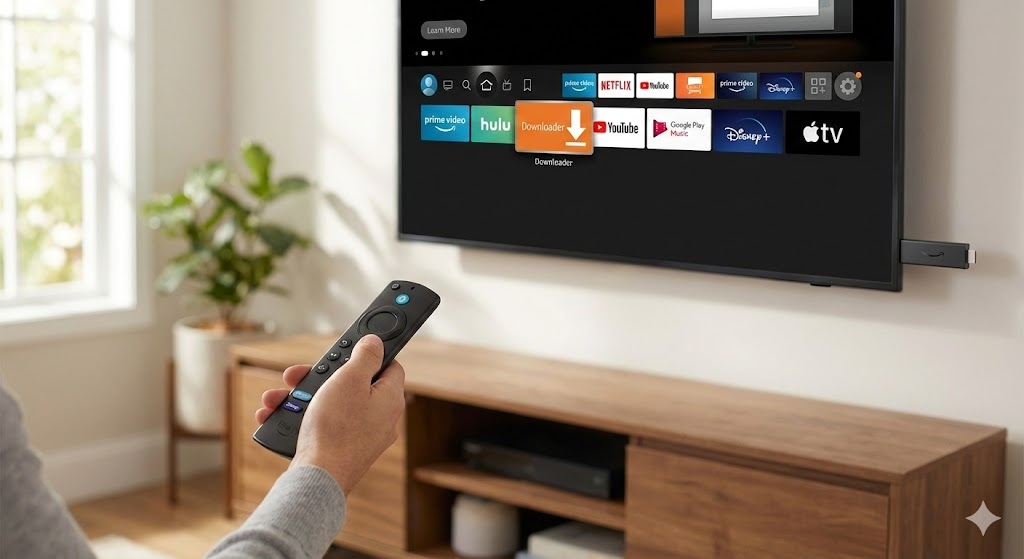
You have the latest Fire TV device, a high-speed connection, and a weekend free of work. The only thing missing is the content. Even in 2026, the Amazon Firestick remains the undisputed champion of streaming devices, but out of the box, it is still a “walled garden.” To truly unlock its potential, you need to master the iptv firestick setup.
While the interface has seen subtle updates over the last year, the core freedom of the Fire TV OS (Fire OS) remains its biggest strength. Whether you are using the classic 4K Max or the newest generation stick, this guide will walk you through the installation process in under ten minutes, bypassing the bloatware and getting you straight to the action.
Why Firestick Rules Streaming in 2026
With Smart TVs becoming smarter and AI integration everywhere, why do we still use Firesticks? The answer is “Sideloading.”
Unlike closed systems that restrict you to officially approved apps, the Firestick runs on a modified version of Android. This allows you to install powerful third-party applications—known as sideloading—that aren’t found in the standard App Store. This capability is essential for running the high-performance players required for premium IPTV solutions. It transforms a simple HDMI dongle into a global entertainment hub.
Step 1: Unlocking Developer Options
Amazon hides the ability to install outside apps to protect casual users. To proceed with your iptv firestick setup, we first need to tell the device that you are a “Developer.”
Note: If you have the latest Fire OS 8 or 9 update, these steps are standard.
- Navigate to Settings: Scroll to the gear icon on the far right of your home menu.
- Select ‘My Fire TV’: This is usually the last option in the grid.
- Click ‘About’: The top option in the list.
- The Magic Clicks: Highlight the name of your device (e.g., “Fire TV Stick 4K Max”) and press the Select (Center) button on your remote 7 times rapidly.
- Watch for the Pop-up: A notification will appear at the bottom of the screen: “No need, you are already a developer.”
- Enable the Setting: Press the back button once. You will now see a new menu item called “Developer Options.” Click it.
- Turn On: Select “Install Unknown Apps” (or “Apps from Unknown Sources” on older models) and turn it ON for the Downloader app (which we will get next).
Step 2: Getting the Downloader App
Since the default Amazon browser is limited, we need a specialized tool to fetch our files. The “Downloader” app is the industry standard.
- Return to the Home Screen.
- Click the Find/Search icon.
- Type “Downloader.”
- Select the orange icon and click Download.
- Crucial Step: Once installed, open it and click “Allow” when asked for permission to access photos and media. Without this, the app cannot save the installation files.
Step 3: Installing a Modern IPTV Player
In 2026, the players have become faster and more intuitive. While there are many options, we recommend IPTV Smarters Pro or TiviMate for their compatibility with modern 4K streams.
The Installation Process
- Open the Downloader app.
- Click into the URL bar.
- Enter the “Short Code” for the player. (For widespread players like Smarters, the code is often 22015 or a similar 5-digit sequence provided by your service. Alternatively, type the direct URL:
https://www.tvplusstream.com/smarters.apkis a placeholder example—always use the link provided by your vendor). - Click Go.
- The file will download. When prompted, select Install.
- Once the installation bar finishes, click Done.
- Pro Tip: A window will ask if you want to delete the APK file. Select Delete. You have already installed the app, so keeping the setup file just wastes storage space.
Step 4: Connecting Your Service
Now that you have the vehicle, you need the keys. Your provider should have sent you credentials, usually via email.
Standard premium TVPlusStream services utilize “Xtream Codes” because they offer a better layout than simple playlist links.
- Open your new IPTV App from the “Your Apps & Channels” row.
- Select “Login with Xtream Codes API”.
- Enter the details provided:
- Any Name: (e.g., “Bedroom TV”)
- Username: (Case sensitive)
- Password: (Case sensitive)
- URL/Port: (The server address provided in your email)
- Click Add User or Login.
Troubleshooting Common 2026 Issues
Even with improved tech, hiccups happen. Here is how to fix them fast.
“File Not Found” Error This usually means you made a typo in the URL or the Short Code is outdated. Double-check your spelling; one missing dot changes everything.
Buffering on 4K Channels If your live TV is stuttering, your internet speed might be the bottleneck. In 2026, 4K streams require at least 25-50 Mbps. Also, try rebooting your router to clear the cache.
App Crashing Force close the app by going to Settings > Applications > Manage Installed Applications, finding your IPTV app, and clicking “Force Stop” followed by “Clear Cache.”
Conclusion
Setting up your entertainment system doesn’t have to be a headache. By following this iptv firestick setup guide, you have bypassed the restrictions and unlocked a world of global content right in your living room.
Now that you are technically set up, you need a service that matches the quality of your device. Don’t settle for pixelated streams.
Check out the premium packages at TVPlusStream for a reliable, high-definition experience that keeps up with the demands of 2026 viewing.








