
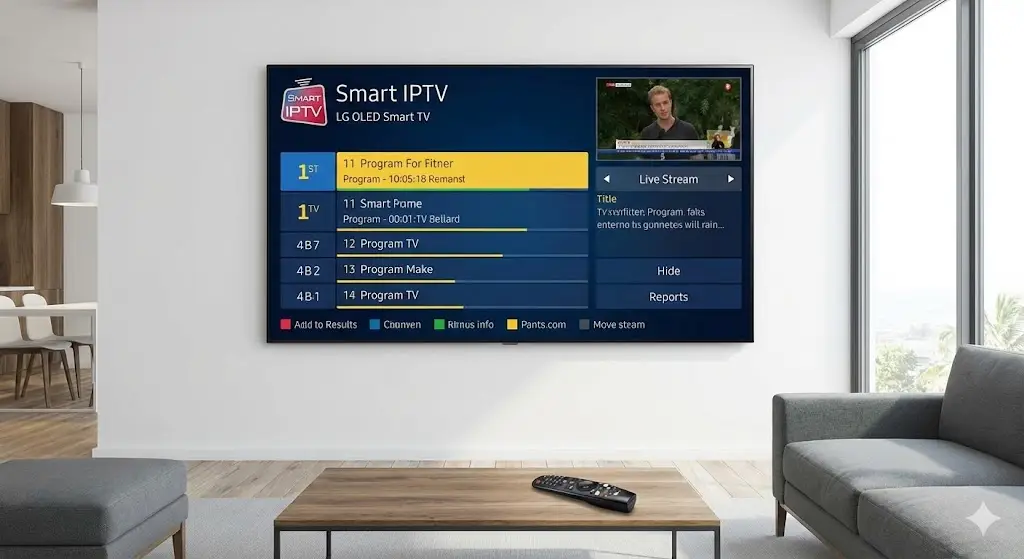
If you own an LG OLED or NanoCell TV, you already know that the picture quality is second to none. The deep blacks and vibrant colors make it the perfect canvas for high-definition entertainment. However, finding the right way to watch live global content can be a challenge. To get the most out of your hardware, you need a reliable iptv lg tv app that runs smoothly on LG’s unique operating system.
Unlike other brands that use Google’s Android TV, LG utilizes its own proprietary software called WebOS. While WebOS is incredibly snappy and user-friendly, it has a more limited selection of applications compared to the Google Play Store. This leaves many users wondering which player is actually worth installing.
In this guide, we have done the heavy lifting for you. We tested the most popular options available on the LG Content Store in 2026 to bring you the definitive list of apps that offer speed, stability, and a modern user interface.
Understanding LG WebOS Limitations
Before we dive into the list, it is important to manage expectations. Because WebOS is a “closed” system, you cannot simply sideload apps (install them from outside sources) as easily as you can on a Firestick or Android box.
You are generally restricted to what is approved in the official LG Content Store. Fortunately, developers have stepped up their game, and there are now several high-performance players built specifically for the LG Magic Remote and the WebOS interface.
Top 5 IPTV Apps for LG Smart TV
After extensive testing on both older models and the latest 2026 OLED screens, here are our top recommendations.
1. IPTV Smarters Pro (WebOS Version)
When it works, it is the best in the business. IPTV Smarters Pro offers a stunning interface that mimics premium cable boxes. It organizes content into Live TV, Movies, and Series, making navigation a breeze.
- Why we love it: It supports “Master Search,” allowing you to find a movie across all categories instantly.
- The Catch: Availability fluctuates. Sometimes it is removed from the LG store for updates. If you see it, download it immediately.
2. Smart IPTV (SIPTV)
This is the legendary app that started it all. If you have been in the streaming game for a while, you know SIPTV. It is famous for its “no-nonsense” approach. It doesn’t have fancy animations, which makes it incredibly fast.
- Best Feature: Fast channel zapping. It switches streams almost instantly.
- Cost: It offers a 7-day free trial, followed by a one-time activation fee (around €5.49).
3. SS IPTV
For those who don’t want to pay for an app, SS IPTV is a robust free alternative. It has been around for years and allows you to upload playlists directly through a code to avoid typing with your remote.
- Best Feature: Completely free and supports multiple playlist formats.
- Drawback: The interface looks a bit dated compared to modern 2026 standards.
4. SET IPTV
A rising star in the WebOS ecosystem, SET IPTV is designed for high-resolution content. It handles 4K streams better than most competitors due to its efficient video decoder.
- Best Feature: Excellent picture quality on OLED screens.
- Setup: Easy configuration via their web portal using your TV’s MAC address.
5. NET IPTV
If you find SIPTV or Smarters unavailable in your region, NET IPTV is the reliable backup. It is a stable, lightweight player that focuses on keeping the stream running without crashing.
- Best Feature: High stability and low buffer rates.
- Cost: Also requires a small activation fee after the trial period.
How to Install These Apps on LG
The installation process on WebOS is straightforward since you don’t need to enable “Developer Options” or hack your TV.
- Press the Home Button: Grab your Magic Remote and hit the house icon.
- Open Content Store: Scroll along the bottom ribbon until you see the “LG Content Store” (or “Apps” on newer models).
- Search: Navigate to the search icon (magnifying glass) at the top right.
- Type the Name: Enter “IPTV Smarters” or “Smart IPTV.”
- Install: Click the install button and wait for the notification.
- Launch: You can now find the app in your main home ribbon.
The “Hardware Hack” for Better Performance
If you find that the native WebOS apps are running slowly or if you simply miss the freedom of Android, there is a simple solution.
Connect an external streaming device like an Amazon Firestick 4K Max or a Chromecast with Google TV to one of your LG’s HDMI ports. This bypasses WebOS entirely, giving you access to thousands of Android apps, including TiviMate and advanced VPNs, while still enjoying your LG TV’s superior picture quality.
The Secret to Buffer-Free Streaming
Having a great app is only half the battle. The app is just the engine; the fuel is your subscription service.
Many users blame their LG TV for freezing when the issue is actually a cheap, overcrowded server. To utilize the full 4K capabilities of your display, you need a high-bandwidth provider. TVPlusStream services are optimized for high-bitrate streaming, ensuring that when you watch live sports or blockbuster movies, the picture remains crystal clear and lag-free.
FAQ: LG Smart TV Streaming
Do I need a VPN on my LG TV? WebOS does not support native VPN apps. If your ISP is throttling your speed, you will need to either install a VPN on your router or use the “Hardware Hack” mentioned above (Firestick) to run a VPN directly on the device.
Why can’t I find these apps in my store? LG divides its store by region. If an app isn’t appearing, it might not be licensed for your country. Some advanced users change their TV’s region settings to access different stores, but this can be complex.
Is IPTV legal? The technology and the apps listed above are 100% legal tools for video playback. However, accessing copyrighted content without a subscription is not. Always use legitimate premium IPTV options to ensure a secure and uninterrupted experience.
Conclusion
Your LG Smart TV is a powerhouse of entertainment. By pairing it with the right application, you can unlock a world of global content without the clutter of cable boxes. Whether you choose the sleek look of Smarters or the raw speed of SIPTV, the upgrade is well worth the few minutes of setup.
Ready to test your new app with a service that matches your TV’s quality? Check out the reliable packages at TVPlusStream today and start streaming in true 4K resolution.








