
How to Install IPTV on your MAG device
MAG boxes are some of the most robust streaming media players. IPTV users choose them for their speed, Simplicity, and excellent streaming performance. The user interface is simple and responsive, channel switching is quick and you receive all the features required to get the most out of your IPTV service.
STEP 1:
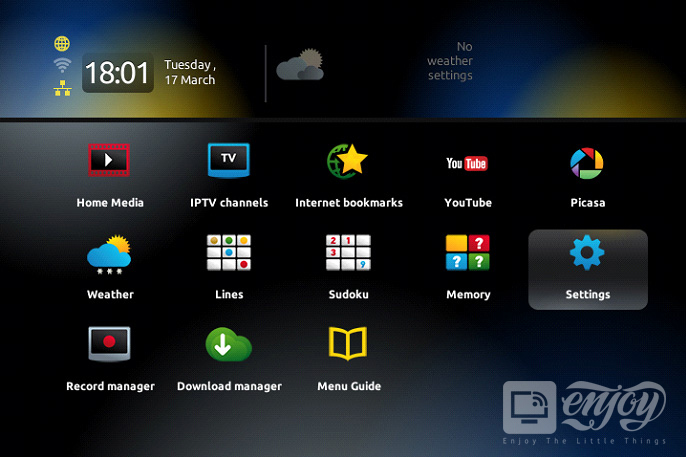
When the box is being loaded the main portal screen appears. After that click on “settings”, press the remote button “SETUP/SET”
STEP 2:
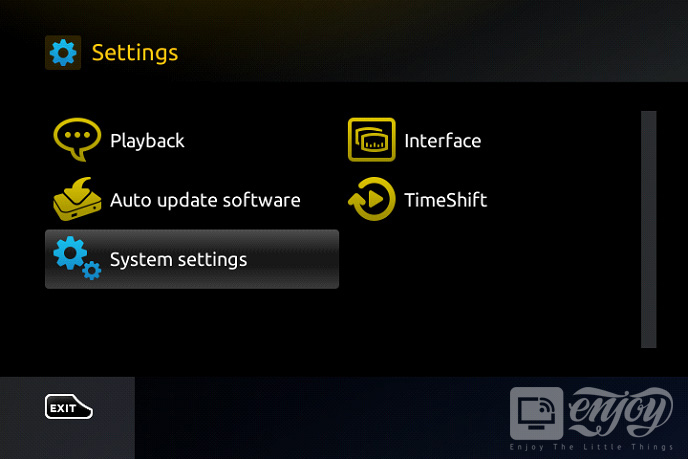
Then press on “System settings” and click on “Servers”.
STEP 3:
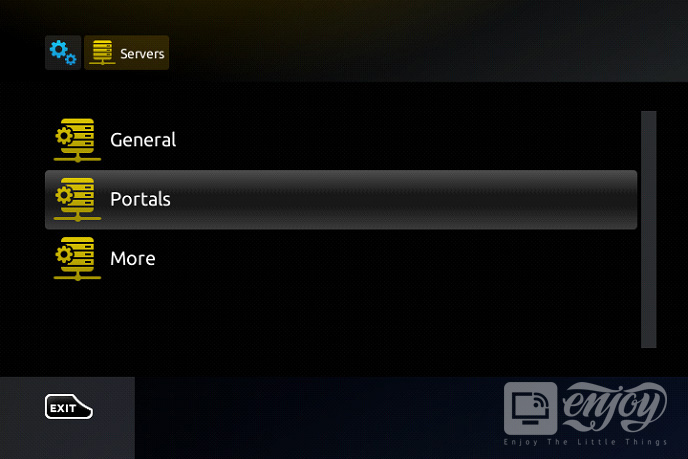
Select “Portals”.
STEP 4:
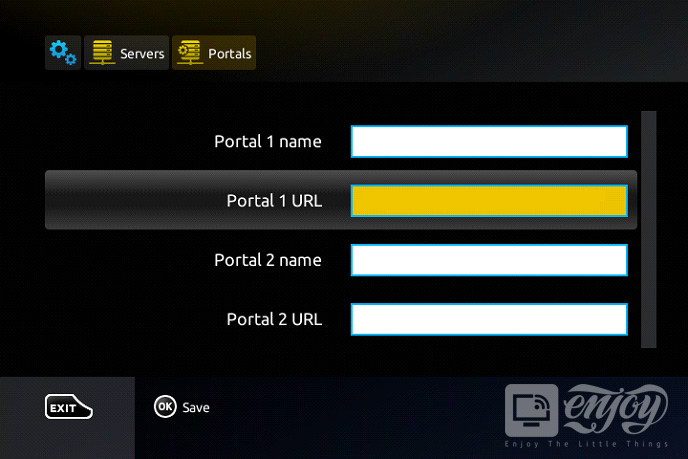
In the “Portal 1 name” line enter the following ” IPTV “.
In the “Portal 1 URL” enter the portal address provided by your IPTV service provider.
STEP 5:
When all the operations listed above are done, then press “OK”.
When the settings are being saved click “EXIT” on the remote control and press the option “General”.
In the “NTP server,” line enter the following address “pool.ntp.org or us.pool.ntp.org“ for North America.
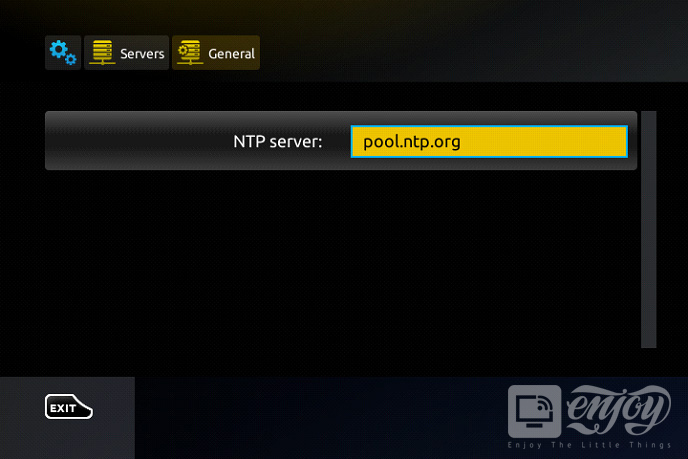
Press “OK” to save the changes you made.
When all the steps listed above are done press ”EXIT” 2 times on the remote control and restart the portal. Now everything is ready to start watching Live TV.
Introduction MAG boxes are widely considered the most robust streaming media players available. Many users choose to install IPTV on MAG devices because of their speed, simplicity, and excellent streaming performance. The user interface is responsive, channel switching is instant, and you receive all the features required to get the most out of your service.
Follow the guide below to set up your device.
Step 1: Access System Settings
When the box is loading, the main portal screen will appear. Click on “Settings” and press the remote button “SETUP/SET”.
Step 2: Select Servers
Navigate to the “System settings” menu and click on “Servers”.
Step 3: Choose Portals
From the server menu, select “Portals”.
Step 4: Enter Portal Details
This is the most critical step to install IPTV on MAG successfully:
In the “Portal 1 name” line, enter: IPTV
In the “Portal 1 URL” line, enter the unique portal address provided by your IPTV service provider.
Step 5: Save and Restart
Once the operations above are done, press “OK”.
When the settings are saved, click “EXIT” on the remote control.
Press the option “General”.
In the “NTP server” line, enter the following address:
pool.ntp.orgorus.pool.ntp.org(for North America).Press “OK” to save your changes.
Press “EXIT” two times on the remote control and restart the portal.
Now, everything is ready! You can start watching Live TV immediately.
Ready to get started?








