
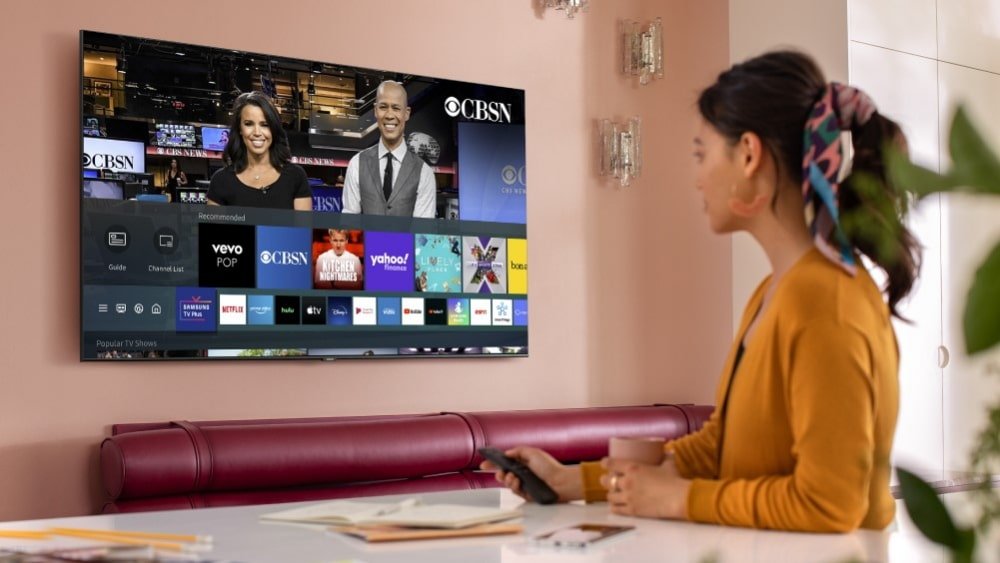
If you own a Samsung Smart TV, you know the struggle. The display is gorgeous, the interface is snappy, but the “Tizen OS” operating system is a walled garden. Unlike Android TVs where you can easily download any app you want, Samsung restricts you to their curated App Store.
For IPTV enthusiasts—especially those looking to unlock adult channels and premium VODs—this can be frustrating. Most “How-To” guides are outdated or suggest apps that were banned years ago.
In this guide, we will cut through the noise. I will show you exactly how to watch IPTV with adult channels on your Samsung Smart TV safely in 2026. We will cover the working apps, how to bypass geo-blocks, and most importantly, how to keep your viewing habits private from prying eyes (and your ISP).
Step 0: The “Safety First” Rule (Do Not Skip)
Before you even install an app, we need to talk about security.
Streaming IPTV with adult channels falls into a legal grey area. Furthermore, your Internet Service Provider (ISP) can see exactly what you are streaming. If they detect high-bandwidth traffic coming from IPTV servers, they often throttle your speed (causing buffering) or, in worse cases, send copyright notices.
The Samsung Problem: No Native VPN
Here is the catch: Samsung TVs do not natively support VPN apps. You cannot just go to the App Store and download NordVPN or ExpressVPN like you can on a Firestick.
To stream safely on a Samsung TV, you have two options:
- Router-Level VPN (Best Protection): Install the VPN on your home router. This protects every device in your house, including your TV.
- Smart DNS (Good for Unblocking): Most premium VPNs offer a “Smart DNS” IP address you can type into your Samsung TV’s network settings. This unblocks content but does not encrypt your data.
My Recommendation: If you are watching sensitive adult content, use the Router method or buy a cheap Firestick 4K to plug into your Samsung TV (which allows native VPN apps). It is a small investment for total peace of mind.
Step 1: Choose the Right Player for Tizen OS
Since Samsung deleted the classic “Smart IPTV” app from many regions, new players have taken the throne. These apps are merely “shells”—they don’t contain content. You need to connect them to a provider (we recommend TVPLUSSTREAM later).
Here are the top 3 apps currently working on Samsung TVs in 2026:
Option A: IBO Player (Top Choice)
IBO Player is currently the most stable IPTV player for Tizen. It handles large playlists (20,000+ channels) without crashing, which is essential for high-res adult libraries.
- Cost: 7-day free trial, then ~€8 one-time fee.
- Pros: Fast channel zapping, great UI, supports 4K.
Option B: Nanomid Player
Nanomid is fantastic because it bypasses some regional blocks natively. It is a robust player that supports EPG (Electronic Program Guide) very well.
- Cost: ~€9.99 lifetime.
- Pros: Built-in VPN features (limited), supports multiple playlists.
Option C: IPTV Smarters Pro (If Available)
Sometimes this app appears and disappears from the Samsung Store. If you see it, grab it immediately. It has the best interface in the game.
- Cost: Free (usually).
- Pros: Beautiful layout, excellent “Parental Control” features.
Step 2: How to Install & Configure (Step-by-Step)
Let’s assume you are using IBO Player, as it is the most widely available on Samsung right now.
- Turn on your Samsung TV and press the Home button.
- Navigate to Apps (the icon with four small squares).
- Use the search bar (magnifying glass) and type
IBO Player. - Install and Open the app.
- Write down the Device ID and Key. You will see these on the main screen. You need them to upload your playlist.
Loading Your Playlist Safely
- Go to your computer or phone.
- Open the IBO Player Upload Site (or the specific site for the app you chose).
- Enter your Device ID and Key.
- Click on Add Playlist.
- Name: Enter “TVPlus” (or whatever you prefer).
- Playlist URL (M3U): Paste the M3U link provided by your IPTV subscription (e.g., from TVPLUSSTREAM).
- Protect Your Privacy: If the app asks for an XMLTV EPG link, paste that too for the TV guide.
- Click Save.
- Go back to your TV and Restart the App. Your channels should now load!
Step 3: Setting Parental Controls (Crucial for Adult Content)
If you live with family or roommates, you don’t want the “Adult” category sitting right next to “Cartoons” or “Sports.”
Most high-quality apps like IBO and Smarters allow you to Lock or Hide groups.
- Open the App settings on your TV.
- Look for “Parental Control” or “Group Management.”
- Set a PIN Code (default is often 0000, change this immediately).
- Find the group named “Adult”, “XXX”, or “For Adults”.
- Select “Lock” or “Hide”.
- Lock: The category is visible, but requires a PIN to open.
- Hide: The category disappears completely. To see it, you must go to Settings > Show Hidden Groups and enter the PIN.
Why We Recommend TVPLUSSTREAM
Finding a provider that works smoothly with Samsung’s Tizen OS can be hit-or-miss. Many providers have “heavy” playlists that crash the TV’s limited memory.
We strongly recommend TVPLUSSTREAM for Samsung users for three reasons:
- Optimized M3U Links: Their playlists are streamlined. They don’t overload your TV’s RAM, ensuring buffer-free streaming even on older Samsung models.
- Dedicated Adult Section: They offer one of the largest, high-definition adult libraries in the market, updated daily.
- Samsung Compatibility: Their support team knows Tizen OS well and can help you troubleshoot specific Samsung error codes (like the dreaded “Check Playlist URL” error).
Pro Tip: When signing up with TVPLUSSTREAM, ask for the “Lite” M3U list if you have an older Samsung TV. This removes unnecessary countries and speeds up the menu.
Troubleshooting Common Samsung IPTV Issues
Problem: The app shows “Stream Error” or “Connect Failed.”
- Fix 1: Restart your Router. This solves 90% of issues.
- Fix 2: Your ISP might be blocking the IPTV URL. This is where that Router VPN we talked about comes in. Turn it on.
Problem: No EPG (TV Guide) is showing.
- Fix: Go to the app settings and click “Reload EPG.” Samsung TVs often aggressively clear cache to save memory, so you may need to reload the guide manually once a week.
Problem: Adult channels are buffering.
- Fix: Connect your TV via Ethernet Cable instead of Wi-Fi. Adult channels are often broadcast in high bitrate (FHD/4K), and Wi-Fi interference can cause stuttering.
Frequently Asked Questions (FAQs)
Q: Can I use “Downloader” on Samsung TV to sideload apps? A: No. The “Downloader” app is for Android (Firestick/Nvidia Shield). Samsung uses Tizen OS, which does not support APK files. You must use apps from the official Samsung Apps Store or use “Developer Mode” (advanced users only).
Q: Is it illegal to watch adult IPTV? A: Watching the content itself is generally not illegal in many jurisdictions, but the source of the stream might be hosting it without a license. Always protect your identity with a VPN to avoid legal hassles.
Q: How do I delete the adult history? A: IPTV apps on Samsung usually don’t keep a “history” like a browser does. However, to be safe, you can go to the app’s settings and look for “Clear Cache” or “Clear Watch History.”
Conclusion
Watching IPTV with adult channels on a Samsung Smart TV requires a bit more setup than on a Firestick or Android box, but the result is worth it. You get crisp 4K upscaling and vibrant colors that only Samsung screens can deliver.
By using a stable app like IBO Player, securing your connection with a VPN, and choosing a premium provider like TVPLUSSTREAM, you can turn your living room TV into the ultimate private entertainment hub.
Ready to get started? Check out our IPTV Setup Guides for more detailed tutorials, or visit TVPLUSSTREAM to grab your 24-hour free trial and test the quality yourself. Stay safe and happy streaming!








