
If you are tired of clunky, slow streaming apps, you have probably heard of TiviMate. It is widely considered the “king” of IPTV players for Android TV and Firestick.
But here is the catch: TiviMate isn’t always easy to find on standard app stores, and it doesn’t come with any content. This leaves many users asking: “How to Install IPTV on TiviMate IPTV Player properly?”
In this guide, we will walk you through unlocking your Firestick, installing the app, and connecting it to a premium service like TVPLUSSTREAM for the ultimate TV experience.
What Is TiviMate and Why Use It?
TiviMate is an interface designed specifically for big screens. Unlike other apps that are just ported from mobile phones, TiviMate is built for remote controls.
- Features: Incredible EPG (TV Guide), recording capabilities, multi-screen (watch 4 channels at once), and catch-up TV.
- Free vs. Premium: The free version is good, but the Premium version unlocks the real power of the app.
Step 1: Prepare Your Firestick or Android TV
Because TiviMate is a third-party app, we need to give your device permission to install it.
- From your home screen, navigate to Settings (the gear icon).
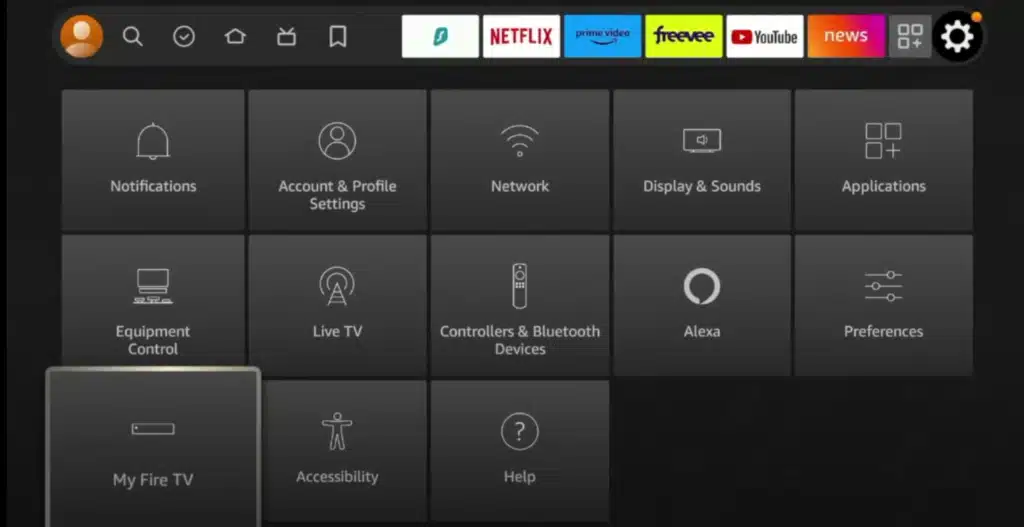
- Select My Fire TV.
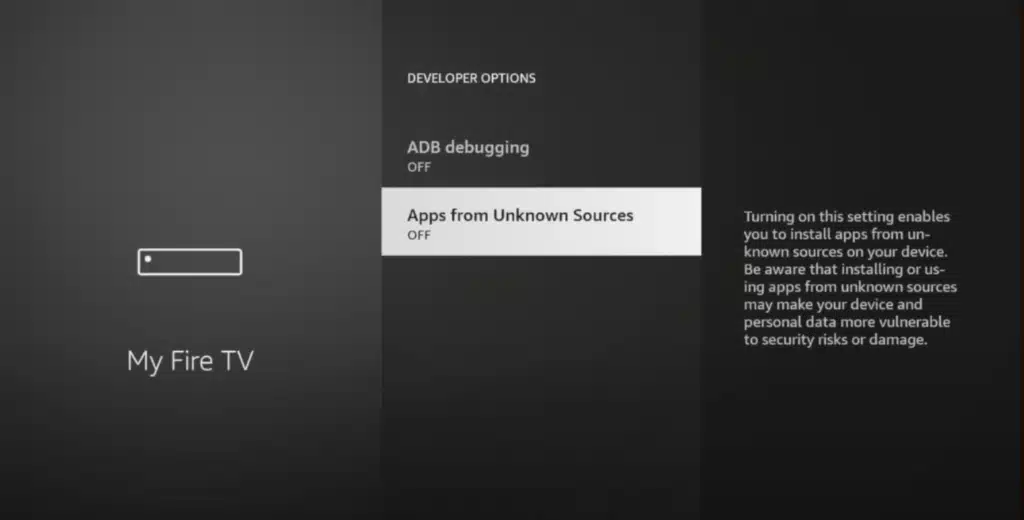
- Click on Developer Options.
- Note: If you don’t see “Developer Options,” click on “About” and then click on the name of your Firestick 7 times quickly. This will unlock the menu.
- Turn ON both ADB Debugging and Apps from Unknown Sources.
Step 2: Install the Downloader App
Since you can’t get TiviMate directly from the Amazon App Store, you need a helper app.
- Go to the Search icon (magnifying glass) on your home screen.
- Type “Downloader”.
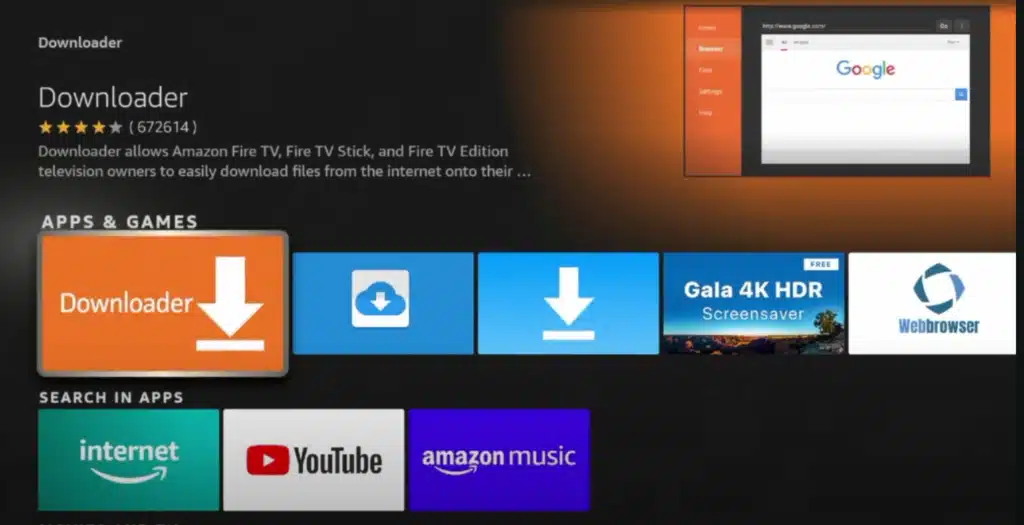
- Select the orange app icon and click Download/Install.
- Open the app and Allow permissions to access photos/media (this is required to save the APK file).
Step 3: Download and Install TiviMate
Now, let’s get the player onto your device.
- Open the Downloader app.
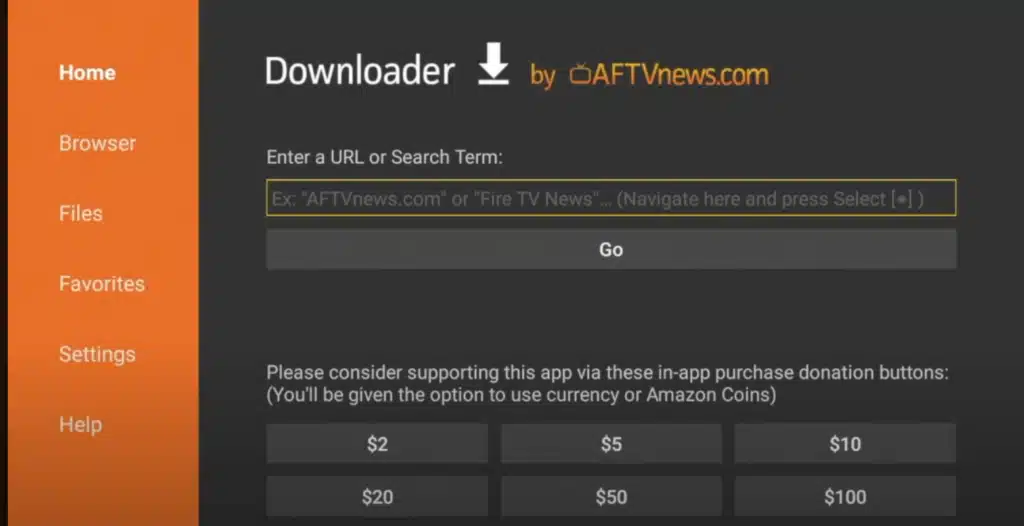
- In the URL box, type this shortcut code: 272483 (or visit the official site tivimate.com).
- Click Go. The app will verify and start downloading the APK file automatically.
- Once the download finishes, a prompt will appear. Click Install.
- When finished, click Open.
Step 4: Add Your IPTV Subscription
Important: TiviMate is just a “shell”—it is an empty player. To watch TV, you need a subscription from a provider like TVPLUSSTREAM.
- Open TiviMate.
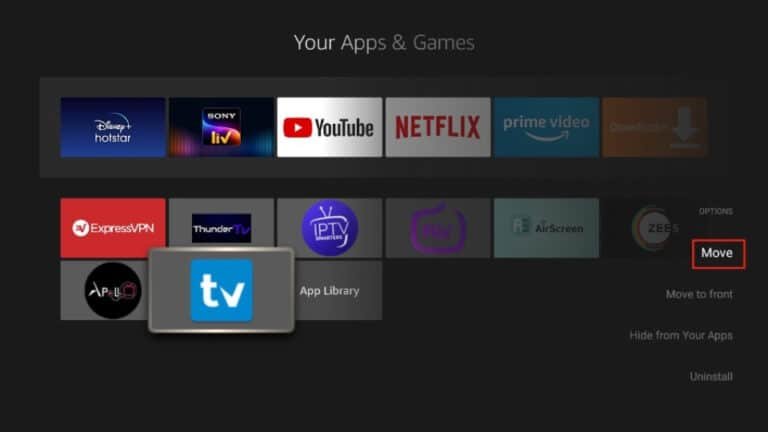
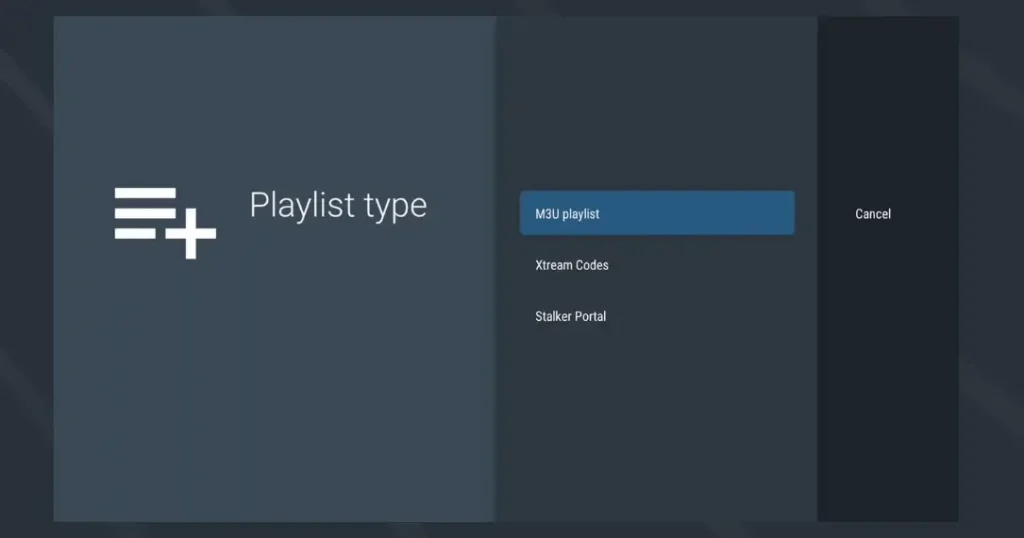
- Click Add Playlist.
- Choose your login method (M3U is the most common):
- M3U Playlist: You enter a long URL provided by your service.
- Xtream Codes: (Recommended) You simply enter the Server URL, Username, and Password.
- Enter the credentials found in your TVPLUSSTREAM welcome email.
- Click Next and wait for the “Processing” bar to finish.
- You will see a message saying “Playlist is processed” with a channel count. Click Done.
Step 5: Start Streaming
You are now ready to roll! You can browse the guide, set up your “Favorites” list, and configure the EPG to see what is playing next.
For the best experience, ensure you go to Settings > Playback and turn on “Auto Frame Rate” (AFR) if your TV supports it, which makes sports look incredibly smooth.
Frequently Asked Questions (FAQ)
Can I use TiviMate on multiple devices? Yes. If you buy the Premium version of TiviMate, you can usually activate it on up to 5 devices using the TiviMate Companion app.
How do I know if my IPTV service is legal with TiviMate? TiviMate itself is 100% legal software. The legality of the stream depends on the provider. Always ensure your provider is licensed and complies with copyright laws.
Are there parental controls in TiviMate? Yes. You can lock specific groups (like “Adults”) or channels with a PIN code in the settings menu, keeping your family viewing safe.
Ready for the Ultimate TV Experience?
You have the best player—now you need the best content. Don’t settle for buffering. Get premium sports and 4K movies today.
Hashtags: #TiviMate #IPTVSetup #FirestickTips #AndroidTV #CordCutting #StreamingGuide #TVPLUSSTREAM #IPTVInstaller #SmartHomeTech








