
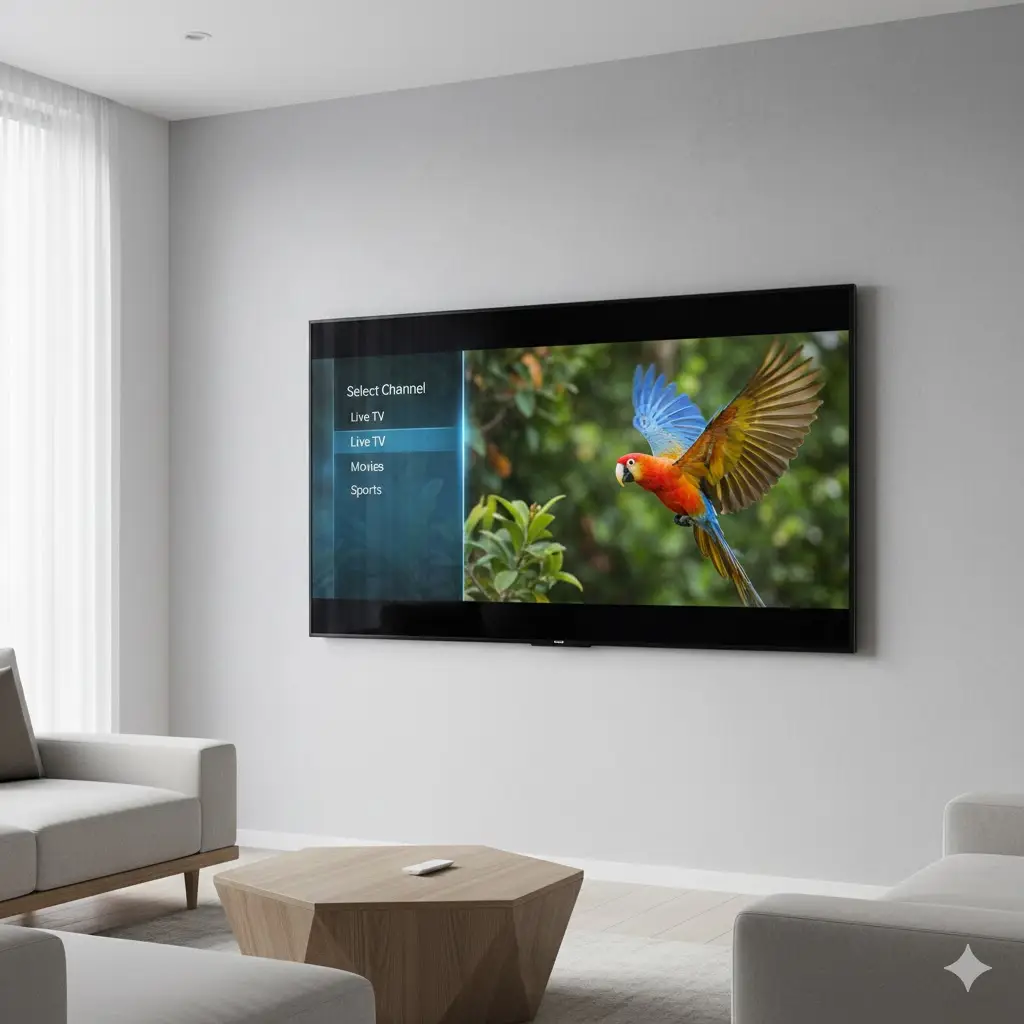
The days of cluttering your media center with cable boxes, satellite receivers, and tangled wires are over. Today, the most powerful entertainment device you own is the screen itself. Setting up iptv smart tv capabilities allows you to stream thousands of live channels and on-demand movies directly through your television’s operating system.
Whether you own a Samsung, LG, Sony, or Hisense, your TV is capable of much more than just Netflix and YouTube. By utilizing modern apps and playlists, you can unlock a world of global content. This guide covers everything you need to know to transform your standard television into a comprehensive streaming hub.
Understanding Your Smart TV Operating System
Before diving into apps and installation, it is crucial to know what software your TV runs. Unlike a Firestick or an Android box where everyone sees the same interface, Smart TVs are fragmented.
- Samsung (Tizen OS): Known for its speed, but has a closed ecosystem. You won’t find the Google Play Store here.
- LG (WebOS): Excellent interface with the “Magic Remote,” but also utilizes a proprietary store.
- Sony / Philips / TCL (Android TV or Google TV): These are the most flexible, as they have native access to the Google Play Store, making smart tv apps iptv installation incredibly easy.
Knowing your OS helps you choose the right player, as not all apps work on every brand.
Top IPTV Players for Smart TVs in 2026
You need a “player” app to handle the stream. Think of the player as the DVD player and your IPTV subscription as the DVD.
1. IPTV Smarters Pro (or Smarters Player Lite)
This is arguably the most popular interface in the world. It organizes content into Live TV, Movies, and Series with a clean, user-friendly layout. While native to Android, a version is often available on the Samsung and LG app stores, though it sometimes goes by different names to bypass restrictions.
2. IBO Player
A fantastic option specifically for Samsung and LG users. It is known for high stability and handling large smart tv m3u playlists without crashing. It usually offers a 7-day trial followed by a small one-time activation fee.
3. TiviMate (Android TV Only)
If you have a Sony or Philips TV running Android, TiviMate is the gold standard. Its guide looks exactly like a traditional cable box, making it perfect for family members who are resistant to change.
Step-by-Step Setup Guide
While every app is slightly different, the core mechanics of loading a playlist are universal. Here is the general workflow to get you watching in minutes.
Step 1: Download the App
Go to your TV’s “App Store” or “Content Store.” Search for one of the players mentioned above (like IBO Player, XCIPTV, or Smarters). Download and install it.
Step 2: Get Your Device Info
Open the app. On the home screen, you will usually see a “Device ID” and a “Mac Key” or “Mac Address.” Write these down; you will need them to connect your service.
Step 3: Load Your Playlist
Most Smart TV apps don’t let you type the long playlist URL with your remote. Instead, they use a web portal.
- Go to the app developer’s website (displayed on your TV screen).
- Enter your Device ID/Mac Key.
- Enter the M3U URL or Xtream Codes provided by your subscription service.
- Click “Send” or “Add Playlist.”
Step 4: Restart
Close the app on your TV and open it again. Your channels should now load automatically.
Optimizing for 4K and Buffer-Free Streaming
Smart TVs are often placed in living rooms far from the internet router. This can lead to buffering, especially with high-bitrate 4K content.
To ensure the best experience:
- Use Ethernet: If possible, plug an Ethernet cable directly from your router to your TV. Wi-Fi is convenient, but a wired connection is stable.
- Check Background Apps: Smart TVs have limited processors. Ensure you aren’t running heavy apps in the background while trying to stream.
- Choose a Premium Source: No amount of tweaking will fix a bad link. Ensure you are using high-performance TVPlusStream services to guarantee that the feed reaching your TV is high definition and stable.
Troubleshooting Common Issues
Even with a great setup, you might run into hiccups.
“Playlist Load Error”
This usually happens if the M3U list is too large for the TV’s memory.
- Fix: Ask your provider for a condensed list that removes countries or groups you don’t watch.
No Audio on Certain Channels
This is a codec issue. Samsung and LG TVs sometimes struggle with specific audio formats used by older streams.
- Fix: Change the “Player Type” in the app settings from Native to ExoPlayer (if available), or switch to an app like Nanomid which has better codec support.
Why Quality Matters
The difference between a pixelated, stuttering mess and a crisp, cable-like experience often comes down to the provider. Free M3U lists found online are unreliable and will constantly buffer on a Smart TV.
For a true home theater experience, you need a dedicated provider that offers optimized streams. Professional IPTV solutions are designed to work seamlessly with Smart TV processors, ensuring quick channel zapping and reliable Electronic Program Guides (EPG).
Conclusion
Setting up iptv smart tv is the ultimate way to modernize your living room. It removes the need for extra remotes, expensive hardware, and restrictive cable contracts. By choosing the right app for your specific TV brand and pairing it with a robust subscription, you gain access to a universe of entertainment.
Don’t let your smart TV go to waste. Unlock its full potential today.
Upgrade your viewing experience with the premium stability of TVPlusStream and start watching in minutes.
FAQ Section
Q: Can I use IPTV on Samsung TV without a box? A: Yes. Samsung TVs run Tizen OS, which supports several IPTV apps like Smart STB, IBO Player, and sometimes IPTV Smarters. You simply download the app from the Samsung Apps Store and configure it.
Q: Is it better to use a Firestick or the Smart TV app? A: A Firestick or NVIDIA Shield generally offers a faster experience and more app choices than the native TV OS. However, using the native Smart TV app is cleaner as it requires no extra hardware or remotes.
Q: How do I update my playlist on the TV? A: Most modern apps update the playlist automatically every time you launch them. If not, there is usually a “Refresh Playlist” or “Update Contents” button in the app settings.








