
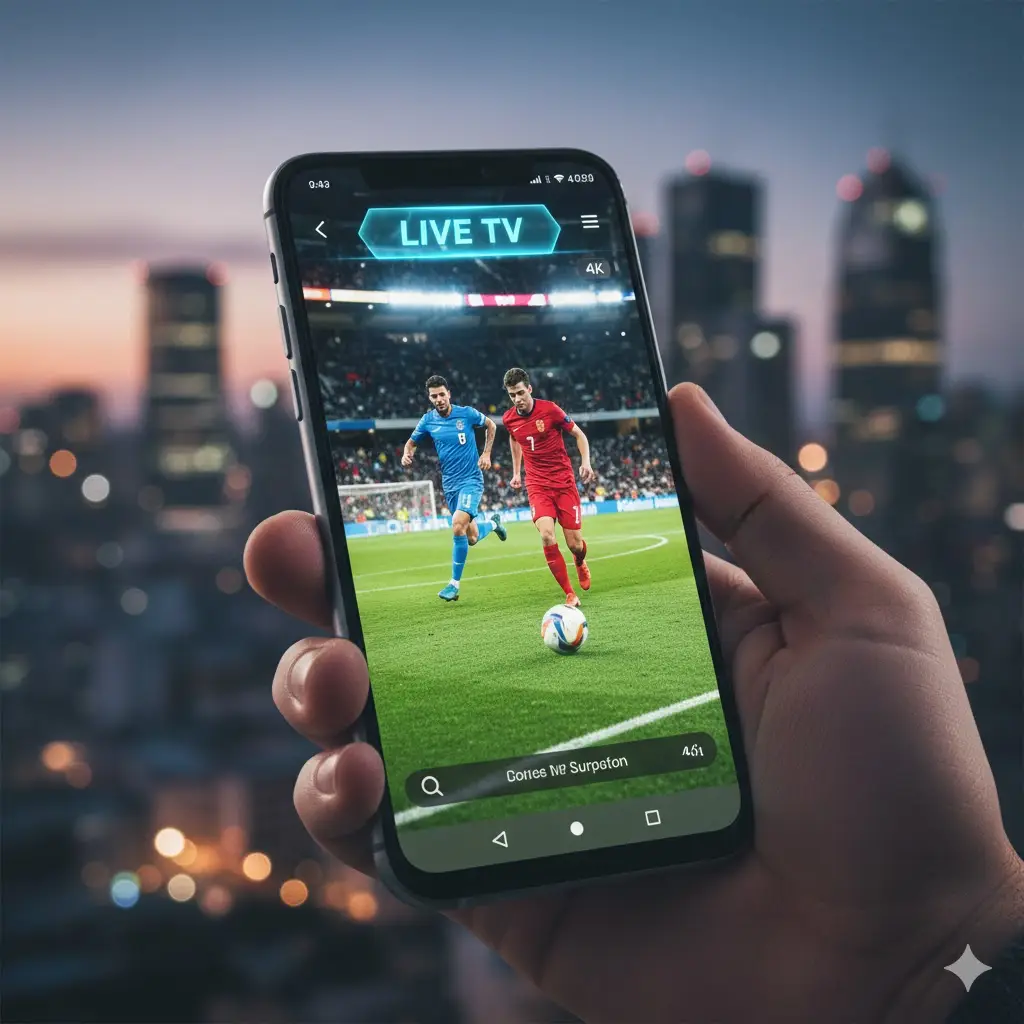
We have all been there: stuck in a waiting room, sitting on a long train commute, or just relaxing in the backyard, wishing we could catch the big game or the evening news. Your smartphone is powerful enough to handle high-definition gaming, so why not live television? Completing an iptv android install is the key to transforming your mobile device into a pocket-sized entertainment center.
Unlike closed ecosystems that restrict what you can watch, Android offers incredible freedom. Whether you have a Samsung Galaxy, a Google Pixel, or a budget-friendly handset, the process is straightforward. You don’t need to be a tech wizard or root your phone. In this guide, we will walk you through the simple steps to get your favorite channels running smoothly on your mobile screen.
Why Android is Perfect for IPTV
The Android operating system is arguably the best platform for IPTV for one major reason: flexibility.
On iPhones, Apple frequently removes IPTV players from the App Store, forcing users to jump through hoops. On Android, you have access to the Google Play Store, but you also have the ability to “sideload” apps directly from developers. This ensures that you always have access to the latest, most powerful players like TiviMate or XCIPTV, giving you a customized viewing experience that rivals your living room TV.
Prerequisites Before You Start
Before diving into the installation, you need two things to ensure a smooth setup:
- A Stable Internet Connection: Streaming live video requires data. For HD viewing on a mobile screen, a 4G/5G connection or stable Wi-Fi with at least 15 Mbps speed is recommended.
- Valid Subscription Credentials: You cannot just download an app and expect free TV. You need a subscription from a provider. This will typically come in the form of an M3U URL (a long link) or Xtream Codes (Username, Password, and Server URL).
Step 1: Choosing the Right IPTV Player
The “Player” is the app that plays the video. Think of it like a web browser for TV channels. There are dozens of options, but for a successful iptv android app experience, we recommend these industry leaders:
IPTV Smarters Pro (Lite)
This is the gold standard for beginners. It separates content into Live TV, Movies, and Series, making it easy to navigate on a touchscreen.
XCIPTV Player
Known for its speed, this player connects quickly and rarely crashes. It is perfect if you have an older phone with less processing power.
TiviMate (Best for Android TV)
While primarily designed for TV boxes, TiviMate works on phones too. It offers the most professional interface but requires a paid subscription for full features.
Step 2: The Installation Process (Google Play Store)
For most users, the easiest method is using the official store. Here is how to do it:
- Open Google Play: Tap the icon on your home screen.
- Search: Type “IPTV Smarters Pro” or “XCIPTV” in the search bar.
- Install: Tap the green “Install” button and wait for the download to finish.
- Open: Launch the app once installed.
Step 3: Sideloading (If the App is Missing)
Sometimes, specific players aren’t available in your region’s Play Store. In this case, you need to sideload the APK file.
- Enable Unknown Sources: Go to Settings > Security (or Apps) > Install unknown apps. Select your browser (like Chrome) and toggle it “On.”
- Download the APK: Visit a trusted APK website or the developer’s site to download the installation file.
- Install: Open your “Downloads” folder, tap the APK file, and select “Install.”
Step 4: Configuring Your Playlist
Now that the app is installed, you need to connect it to the TVPlusStream services.
- Open your chosen app (e.g., IPTV Smarters).
- Select “Login with Xtream Codes API” (this is usually faster and more stable than M3U links).
- Enter the details sent to your email:
- Any Name: Enter something like “My Mobile TV”.
- Username: (Case sensitive).
- Password: (Case sensitive).
- URL: The server address provided by your service.
- Tap “Add User” or “Login”.
- Wait for the channels to download. This might take a minute depending on your connection.
Optimizing Your Mobile Streaming
Watching on a phone is different from a TV. To save data and battery, consider these tweaks:
- Adjust Stream Quality: If you are on a limited data plan, look for SD (Standard Definition) channels instead of FHD.
- Use Wi-Fi: Always prioritize Wi-Fi over mobile data to avoid unexpected bills.
- Background Play: Some apps allow audio to keep playing even when the screen is off—perfect for listening to news or sports commentary while walking.
Troubleshooting Common Issues
Even with a perfect iptv android install, hiccups can happen.
- Buffering: If the stream lags, try clearing the app’s cache in Settings > Apps. Also, ensure you aren’t in a “dead zone” for mobile signal.
- Login Failed: 99% of the time, this is a typo. Zeros (0) often look like the letter ‘O’. Double-check your credentials.
- Empty Playlist: If the app logs in but shows no channels, hit the “Refresh” button in the app settings to force a playlist update.
Conclusion
Carrying a TV in your pocket is no longer science fiction; it is a daily reality for millions. By following this guide, you have unlocked the full potential of your Android device, giving you access to global entertainment wherever you go.
However, a great app needs a great signal. To ensure your mobile experience is buffer-free and crystal clear, you need a reliable streaming platform backing you up.
Check out the mobile-friendly packages at TVPlusStream today. Get your credentials instantly and start watching your favorite shows on the move.
FAQ: IPTV on Android Questions
Does IPTV drain my phone battery? Yes, streaming video is resource-intensive. It uses your screen, processor, and data modem simultaneously. To save battery, lower your screen brightness and close other background apps while watching.
Can I cast from my phone to my TV? Absolutely. Most Android IPTV players support Chromecast. Look for the small “Cast” icon (a square with Wi-Fi waves) in the top corner of the player to send the video to your big screen.
Is it safe to install APKs? Generally, yes, provided you download them from reputable sources or the official developer’s website. Avoid downloading “modded” or “cracked” versions of apps from shady forums, as these can contain malware.








