
If you prefer watching live sports, movies, and series on a bigger screen or while you work, you might be asking: “How to use an IPTV downloader Windows ?”
You are not alone. While Smart TVs are great, using a Windows PC gives you more power. It allows you to not only stream content but often record (download) live TV to watch later. To get started, you usually need a compatible app like MyIPTV Player from the Microsoft Store or IPTV Smarters.
In this guide, we will walk you through exactly how to set up your Windows machine for the ultimate streaming experience.
Why Use Windows for IPTV?
Before we get to the setup, why choose a PC over a Firestick?
- Multitasking: Watch the game in a corner window while you work.
- Recording Power: Windows “Downloaders” often have recording features (PVR) that mobile apps lack.
- Speed: PCs generally have faster processors than streaming sticks, meaning less buffering.
Step-by-Step: How to Use an IPTV Downloader on Windows
Follow these steps to turn your PC into a media hub.
1. Choose and Install Your Software
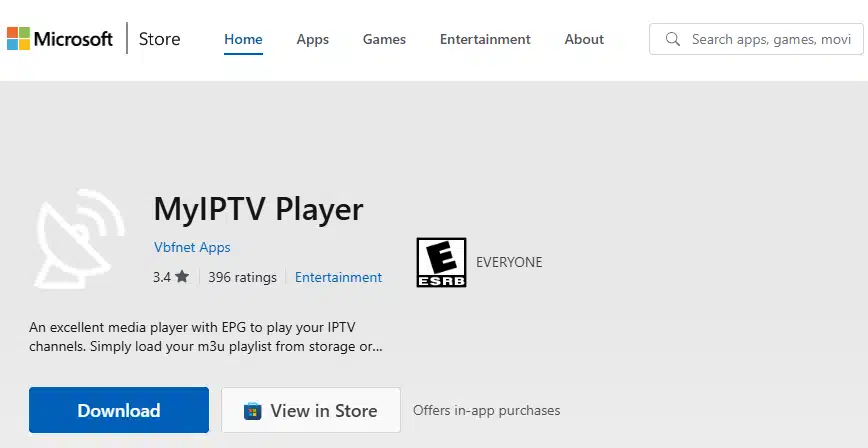
First, you need a program that can read IPTV signals. There are several great options:
- MyIPTV Player: (Best for native Windows 10/11 feel).
- IPTV Smarters Pro: (Best interface).
- VLC Media Player: (Best for simple playback).
Action: Go to the Microsoft Store or the official website of the app you chose and install it.
2. Get Your M3U Playlist
This is the most critical step. You cannot “download” TV without a source.
- Ensure you have a stable internet connection.
- Check your email for the M3U URL provided by your IPTV service provider.
- Note: This URL contains the entire list of thousands of channels.
3. Configure the Downloader (MyIPTV Player Example)
Here is how to set it up specifically for the popular MyIPTV Player:
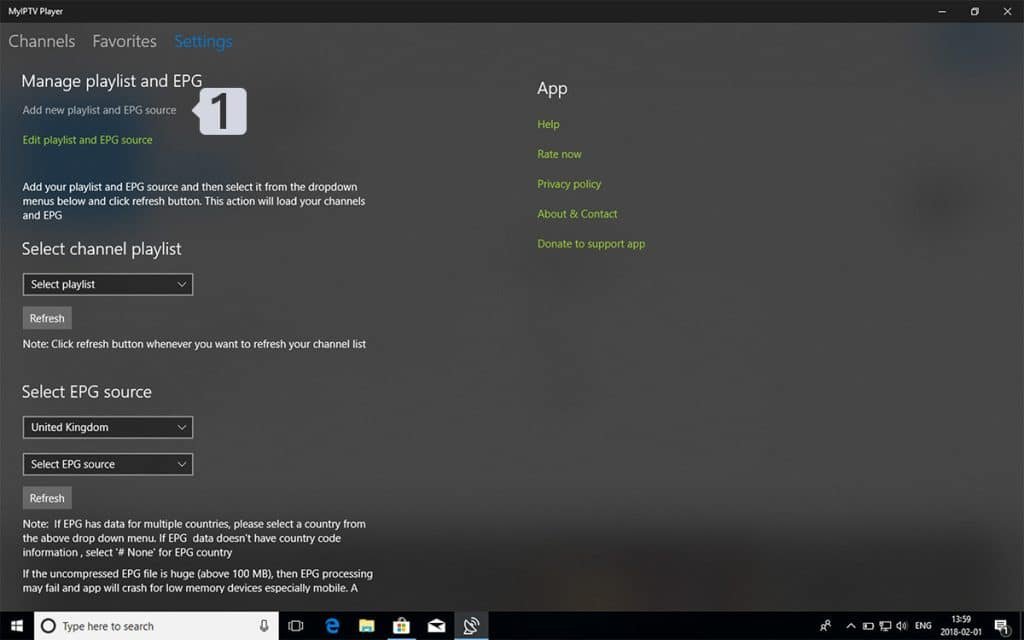
- Open the app and navigate to the Settings tab.
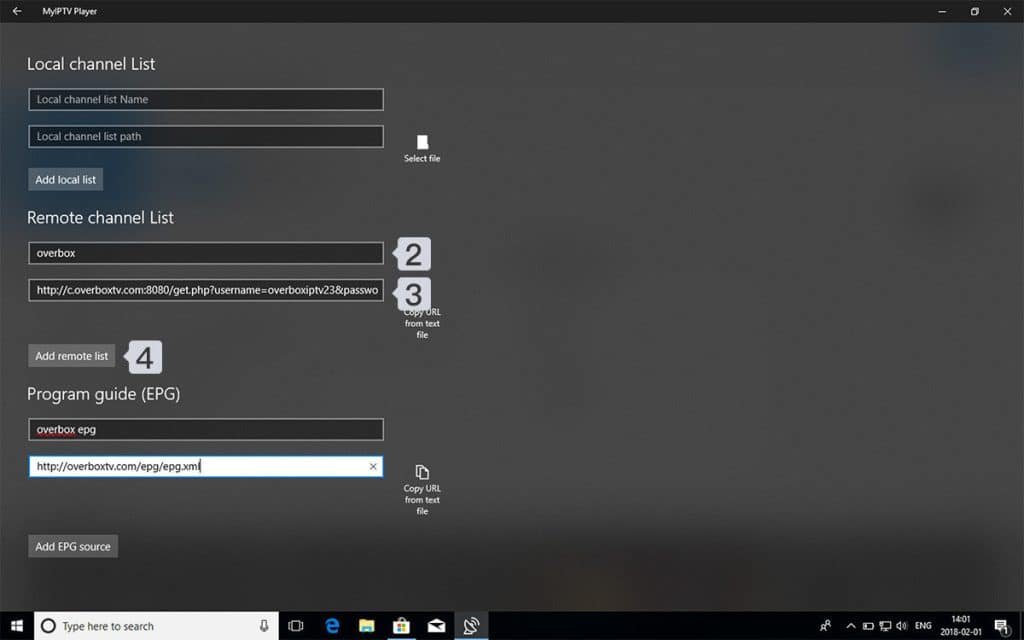
- Select “Add New Playlist and EPG Source.”
- Name It: In the “Remote Channel List Name” field, type a name (e.g., TVPLUSSTREAM or Overbox).
- Paste It: Copy your M3U link and paste it into the “Enter Remote Source URL” field.
- Click Add Remote List.

4. Load the Channels
Once the list is added, you aren’t done yet.
- Go back to the main Settings page.
- Look for the “Select Channel Playlist” dropdown menu.
- Select the name you just created (e.g., Overbox).
- Click Refresh. The app will now download the channel list from the server.
5. Access Your Content
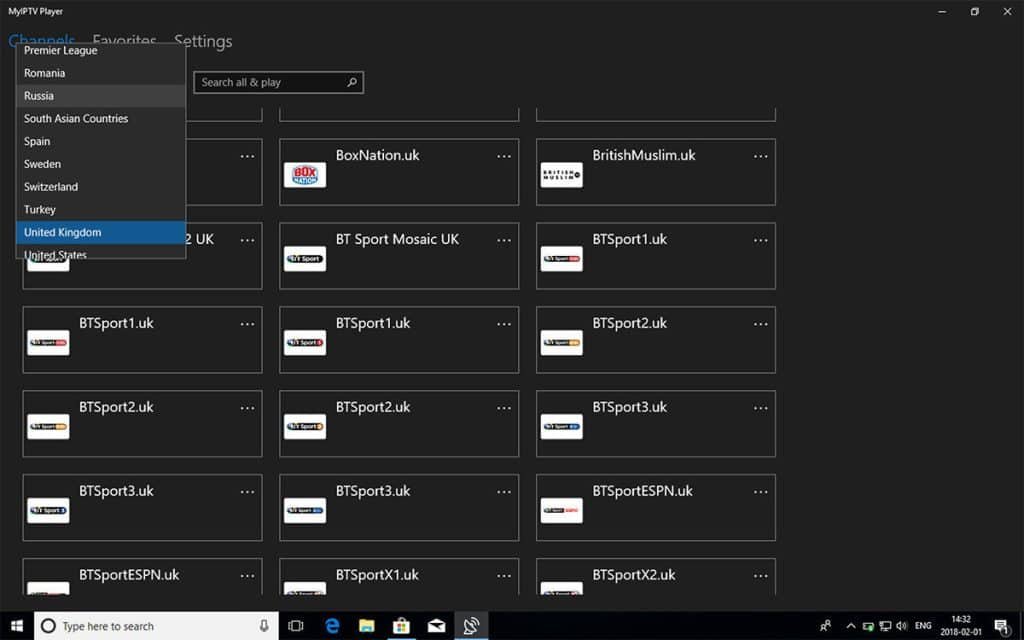
Go to the Channels tab. You should now see categories like “Live TV,” “Movies,” and “Series.” You can now browse by country or genre and start watching.
Pro Tip: Optimizing Your Experience
To ensure smooth playback on Windows:
- Wired Connection: If possible, use an Ethernet cable instead of Wi-Fi.
- VLC Codecs: If you use a downloader that relies on external players, ensure you have the latest video codecs installed.
- VPN: Always run a VPN on Windows to prevent your ISP from throttling your connection during peak hours.
Frequently Asked Questions (FAQ)
How to Use IPTV in Windows? To use IPTV on Windows, you simply need a media player app like MyIPTV Player, VLC, or Kodi. Once installed, you enter the M3U playlist URL provided by your subscription service. This allows you to stream live TV directly on your desktop or laptop.
Can I Download IPTV on PC? Yes, absolutely. The term “Download IPTV” can mean two things: downloading the app (software) or downloading the content (recording). Most Windows IPTV players allow you to stream, and apps like ProgDVB or IPTV Recorder specifically allow you to record shows to your hard drive.
What Is the Best IPTV App for Windows PC? The “best” depends on your needs. IPTV Smarters offers the best user interface (UI) and looks like Netflix. MyIPTV Player is lightweight and integrates well with Windows. VLC is the most reliable for raw streaming quality but lacks a pretty interface.
Can You Download IPTV Smarters on PC? Yes, IPTV Smarters is available for PC. You can download the official .exe file from their website or find compatible versions on the Microsoft Store. It is widely considered one of the best apps for managing large channel lists.
Ready to Upgrade Your Viewing Experience?
Stop dealing with buffering and poor-quality streams. Get access to premium channels today.
Hashtags: #IPTVWindows #MyIPTVPlayer #IPTVDownloader #StreamingTips #TechGuide #Windows10 #IPTVSetup #CordCutting #TVPLUSSTREAM #IPTVHelp








